

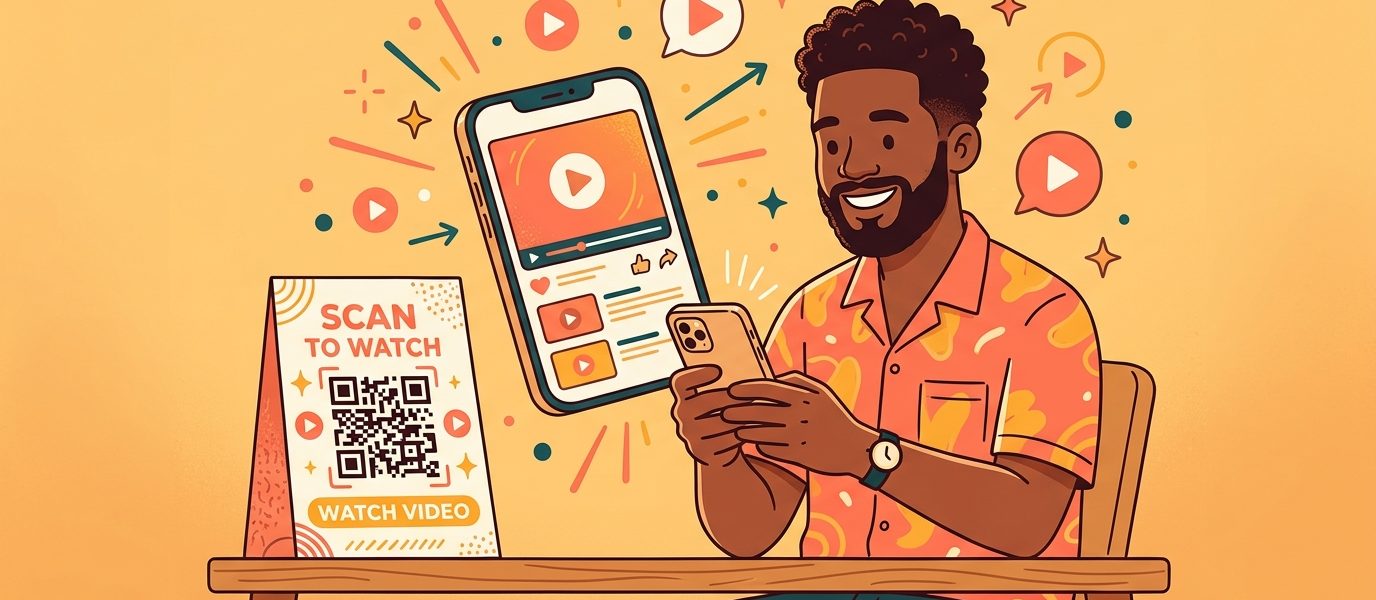
You just spent three weeks making a product demo. It’s sitting on YouTube with 47 views, most of them yours. You’ve got a trade show next week, a printed handout ready to go, and no easy way to get attendees from the paper in their hand to the video on their phone.
Telling them to “search YouTube for our channel name” is a losing game. Typing a URL off a handout in a noisy booth is worse. And a raw link buried on your business card or flyer? It might as well not exist.
A QR code for your video fixes this. One scan and the person standing in front of you is watching the thing you made — full screen, no friction, no typos. Done right, the code also tells them what they’re about to watch before they even point their camera at it.
This guide walks you through exactly how to make a QR code for a video, whether it lives on YouTube, Vimeo, TikTok, or a file you’re hosting yourself. We’ll also cover the one design choice that meaningfully increases scan rates: adding a recognizable platform icon so people know where the code leads.
Why Make a QR Code for a Video?
91% of businesses now use video as a marketing tool — which means the scarce resource isn’t video anymore. It’s attention. Getting the right person to watch the right video at the right moment is the real battle. Video is sticky. Print is physical. QR codes are the bridge between them, and for video content specifically, that bridge solves problems no other format can.
The URL Problem
YouTube URLs are long, awkward, and full of random characters. Something like youtube.com/watch?v=dQw4w9WgXcQ doesn’t fit cleanly on a flyer, a packaging label, or a trade show sign. It also doesn’t invite anyone to type it. A QR code compresses that entire URL into a small square that works from three feet away.
The Discovery Problem
Most video views die in the “search for my channel” step. People forget. They get distracted. They land on someone else’s video and never come back. A QR code eliminates the search entirely — scanner lands directly on your video, ready to play.
The Tracking Problem
A raw YouTube link tells you how many people watched. It doesn’t tell you which flyer worked, which event drove the scans, or what time of day people engaged. A QR code built on a trackable short link gives you all of that. You see where scans happened, what device, what country, and when — so you can tell whether your trade show booth actually produced views or whether it was the email campaign that did the heavy lifting.
The Update Problem
Print a YouTube link on 500 postcards, then change the video. Now all 500 postcards point to a dead or wrong URL. A dynamic QR code lets you swap the destination anytime without reprinting. The code on paper stays the same — the video it leads to can change whenever you want.
What You’ll Need Before You Start
You don’t need much — but you do need a few things ready before you generate the code.
- The video URL. Whether it’s on YouTube, Vimeo, TikTok, Instagram Reels, or hosted on your own site, have the direct link ready.
- A QR code generator that supports dynamic codes. Static QR codes encode the URL permanently; dynamic ones let you change the destination later. For video, dynamic is almost always the right call.
- Optional: a platform icon. Adding a YouTube, TikTok, or Instagram icon to the center of your QR code signals what the person is about to watch. More on this below.
- Optional: a destination page for hosted video. If you’re not using a public platform, you’ll need a URL where the video lives — either a page on your site or a direct file link.
How to Make a QR Code for a Video (Step-by-Step)
Here’s the exact process. Most of the decisions happen in step one; the rest is execution.
Step 1: Choose Your Video Destination
The QR code doesn’t store the video — it stores a link to the video. So the first question is: where does your video live?
YouTube is the default for most creators. Public YouTube videos work on every device, autoplay when possible, and don’t require any hosting from you. To get the link, open the video and click Share — copy the URL (YouTube’s official sharing guide).
Vimeo is a better choice for higher-quality playback, password-protected videos, or videos without YouTube’s recommendation algorithm steering viewers elsewhere after yours ends.
TikTok, Instagram Reels, or YouTube Shorts work the same way — grab the share link from the platform itself. Just be aware that some platforms force scanners to open the app if it’s installed, which can be a feature or a friction point depending on your audience.
A video file you host yourself (MP4 on your website, a hosted landing page with an embedded player, a Google Drive link) gives you complete control — no platform branding, no recommended videos, no ads. The tradeoff is bandwidth and slower load times on mobile.
Step 2: Open a QR Code Generator
Head to the floating Try it Free widget in the bottom-right corner of most QR Chameleon pages. Click it and choose QR Code. Paste your video URL into the destination field and hit Create QR Code.
You’ll be taken to the signup flow. Once you’re in, the generator opens up directly on your new QR code, ready to customize.
Step 3: Add the YouTube Icon (or the Platform That Matches Your Video)
This is the step most people skip. It’s also the one that matters most.
QR Chameleon includes built-in icons for 12 major platforms — YouTube, TikTok, Instagram, Facebook, LinkedIn, X (Twitter), WhatsApp, Telegram, Messenger, Threads, Viber, and Google. They’re free, even on the free plan. Adding the platform icon to the center of your QR code does two things:
- It tells people what they’re about to watch before they scan. The difference between a blank QR code and one with the YouTube play button is the difference between “I wonder what this is” and “oh, a YouTube video.” Recognition matters. People scan what they understand.
- It reinforces the destination. When someone’s camera opens the link and YouTube loads, there’s no “wait, where am I?” moment. The code promised YouTube; YouTube delivered. Small thing, but it builds trust — especially in public-facing contexts where QR code scams have made people cautious.
In the QR Chameleon editor, open the Logo or Icon panel and select YouTube (or whichever platform matches your video’s home). The icon drops into the center automatically, sized to keep the code scannable.
Step 4: Brand the Rest of the Code
With the platform icon in place, customize the rest to match your print materials or campaign. Paid plans unlock:
- Custom colors — match your brand palette instead of defaulting to black
- Rounded dots, custom corner styles, or circular shape — visual polish that makes the code feel intentional
- Gradients on the dots for a more designed look
Keep contrast high. Dark code on a light background scans best. Light code on a dark background works but is pickier — test it before printing.
Step 5: Test It, Then Download
Before you print anything, scan the code with your phone. Make sure it opens the right video, plays cleanly, and doesn’t get routed anywhere unexpected. Test on both iPhone and Android if you can — the built-in camera apps handle QR codes slightly differently, and what works on one doesn’t always work on the other.
When you’re happy, download the code in the format you need:
- PNG or JPEG for digital use (email, slides, social)
- SVG for print — it scales to any size without getting blurry
Save a copy of the QR code URL in your records too. If you ever need to update the destination video, that’s where you’ll go.
Create a QR Code With the YouTube Icon
Dynamic QR codes with free platform icons
Create Your Free Video QR CodeWhere to Use a QR Code for Your Video
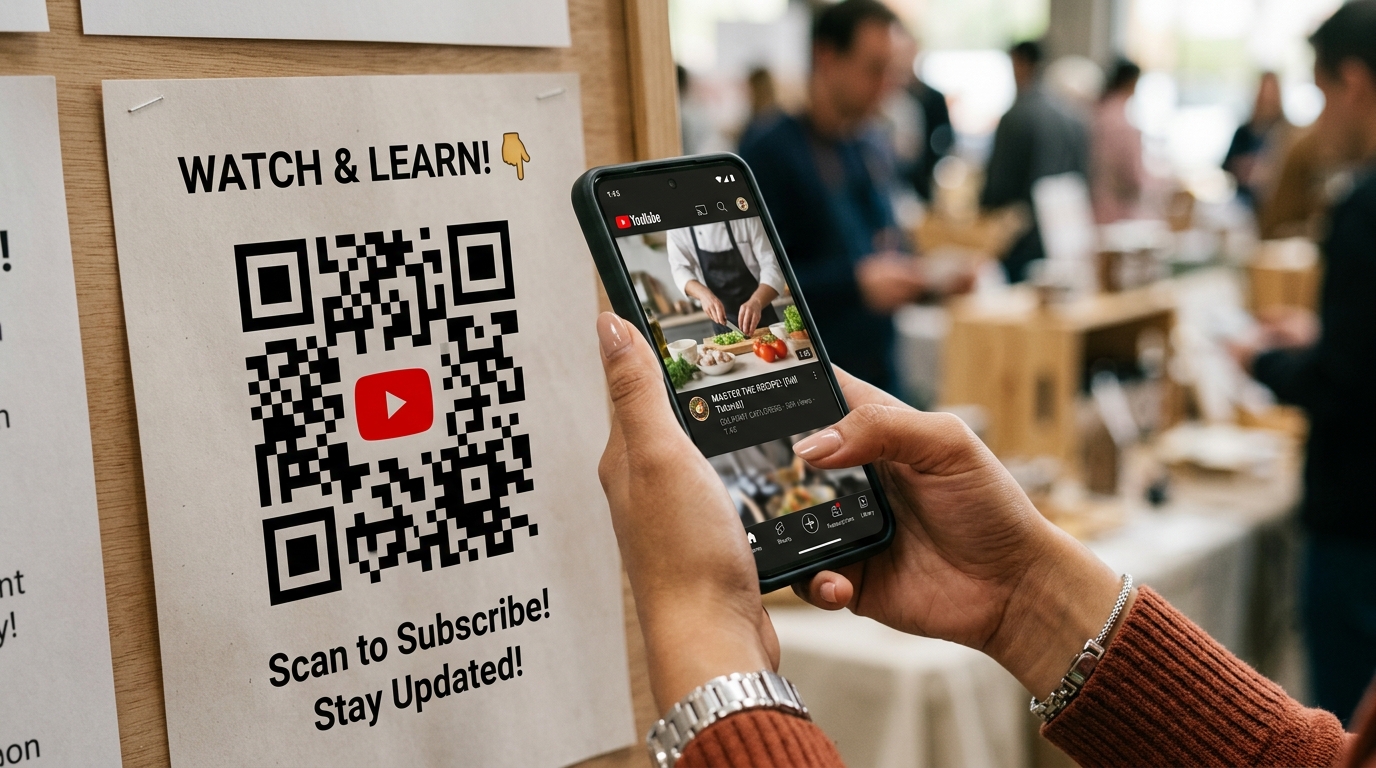
The whole point of this is getting the code in front of the right people. A few of the highest-leverage placements:
Trade show handouts and booths. Printed flyer or tabletop sign with your demo video QR code. Visitors who don’t have time to watch at the booth can scan and watch on the plane home.
Packaging and product inserts. Link to a setup or tutorial video. Fewer support tickets, more customer satisfaction, and scan data that tells you where confusion happens.
Business cards. If you have a portfolio reel or personal intro video, add the QR code next to your name. Turn a static card into a moving introduction — and pair it with a vCard QR code on the flip side to cover contact saving and the video in one piece of paper.
Real estate signs and open house materials. Property walkthrough videos that scan straight from the yard sign.
Restaurant and retail signage. Chef introductions, behind-the-scenes videos, brand stories. Scannable video builds connection that static print can’t.
Event tickets and programs. Preview video for the upcoming act, sponsor message, or venue walkthrough.
Email signatures and proposals. A QR code embedded in a proposal PDF links to a personalized pitch video. Reviewers scan with their phone while scrolling the document on their laptop.
Common Mistakes to Avoid
A few pitfalls that trip people up the first time:
Using a static QR code. If the video ever moves, gets taken down, or needs to be swapped for an updated version, a static code is dead. Dynamic codes let you change the destination without reprinting. For video specifically, this matters more than for most content — YouTube URLs change, videos get re-uploaded, and campaigns evolve.
Making the code too small. A code needs to be at least 1 inch by 1 inch for comfortable scanning from arm’s length, and larger if people are standing further away. On a trade show sign meant to be scanned from six feet back, aim for 3-4 inches minimum.
Skipping the icon. A naked QR code gets fewer scans than one with context. The YouTube play button, TikTok logo, or Instagram icon tells people what they’re about to get. This is the single cheapest increase in scan rate you can make.
Printing without testing. Always scan the printed proof, not just the digital file. Ink bleed, low-contrast paper, and printer resolution can break a code that looks perfect on screen.
Ignoring the analytics. If you’re going to the trouble of creating a QR code, look at the scan data. You’ll learn which materials drove engagement and which didn’t — and you can layer UTM parameters on top for even sharper campaign attribution.
Ready to create your own QR codes?
Start for free — no credit card required.
Create Your Free Account NowVideo QR Code FAQs
How do you make a QR code for a video?
Copy the video URL (from YouTube, Vimeo, TikTok, or wherever the video lives), paste it into a dynamic QR code generator, optionally add the platform icon to the center, customize the colors and style, then download. The QR code stores a link to the video, not the video itself – so as long as the URL stays accessible, the code works.
Can you create a QR code for a YouTube video?
Yes. Copy the YouTube share URL, paste it into a QR generator, and generate. For the smoothest experience, add the YouTube icon to the center of the code so scanners know what to expect. Use a dynamic code if there’s any chance you’ll want to change the video later.
Do QR codes for videos work on any phone?
Yes. Every iPhone since iOS 11 and every modern Android phone has a built-in QR code scanner in the camera app. The scanner opens the video link in the default browser or, if the platform’s app is installed, in the native app. No scanner app required.
Can I update the video a QR code links to?
Only if you used a dynamic QR code. Dynamic codes let you change the destination URL from a dashboard without regenerating or reprinting the code. Static QR codes encode the URL permanently – once they’re printed, the destination is locked. This is the main reason video QR codes should be dynamic.
Why should I add the YouTube icon to my QR code?
Two reasons. First, it signals what the scanner is about to get – an unlabeled QR code is a mystery, but one with the YouTube play button is clearly a video. Recognition drives scan rates. Second, it reinforces the destination after scanning – the person sees YouTube in the preview and YouTube in the loaded video, which builds trust and reduces bounces. The icon is free on QR Chameleon’s free plan.
What is the best size for a QR code on print materials?
Minimum 1 inch by 1 inch for arm’s-length scanning – think business cards, flyers, and packaging. For signs and posters meant to be scanned from further away, scale up proportionally: roughly 10x the scanning distance. A sign meant to be scanned from 6 feet away should feature a code around 3-4 inches square minimum.
Can I make a QR code for a video file I uploaded instead of a YouTube link?
Yes – you just need a public URL where the video file lives. That could be an MP4 hosted on your own website, a Google Drive link with public sharing enabled, or a landing page that embeds the video. Paste that URL into the QR generator the same way you would a YouTube link.
Dynamic QR codes for any video — complete with the built-in YouTube, TikTok, and Instagram icons for instant recognition — are available at QR Chameleon. Create your first video QR code free.