


Tired of repeating your WiFi password to every guest, customer, or visitor? A WiFi QR code lets anyone connect to your network instantly—just scan and they’re online.
No more spelling out “xK9#mPz2!” letter by letter. No more watching someone type it wrong three times. Just point, scan, done.
In this guide, you’ll learn how to create a WiFi QR code for free, where to use it, and best practices to keep your network secure.
What Is a WiFi QR Code?
A WiFi QR code stores your network name (SSID), password, and encryption type in a scannable format. When someone scans it with their phone camera, they get a prompt to join your network automatically.
What’s encoded inside:
- Network name (SSID)
- Password
- Security type (WPA/WPA2/WPA3 or open)
- Hidden network flag (optional)
Most smartphones—both iPhone and Android—can scan WiFi QR codes natively using the camera app. No special app needed.
How to Create a WiFi QR Code (Step-by-Step)
Step 1: Gather Your WiFi Details
You’ll need:
- Network name (SSID): The name that appears when searching for WiFi
- Password: Your WiFi password (case-sensitive)
- Security type: Usually WPA2 or WPA3 for modern routers
Where to find these:
- Check the sticker on your router
- Look in your router’s admin settings (usually 192.168.1.1)
- Check your phone’s saved networks
Step 2: Generate Your QR Code
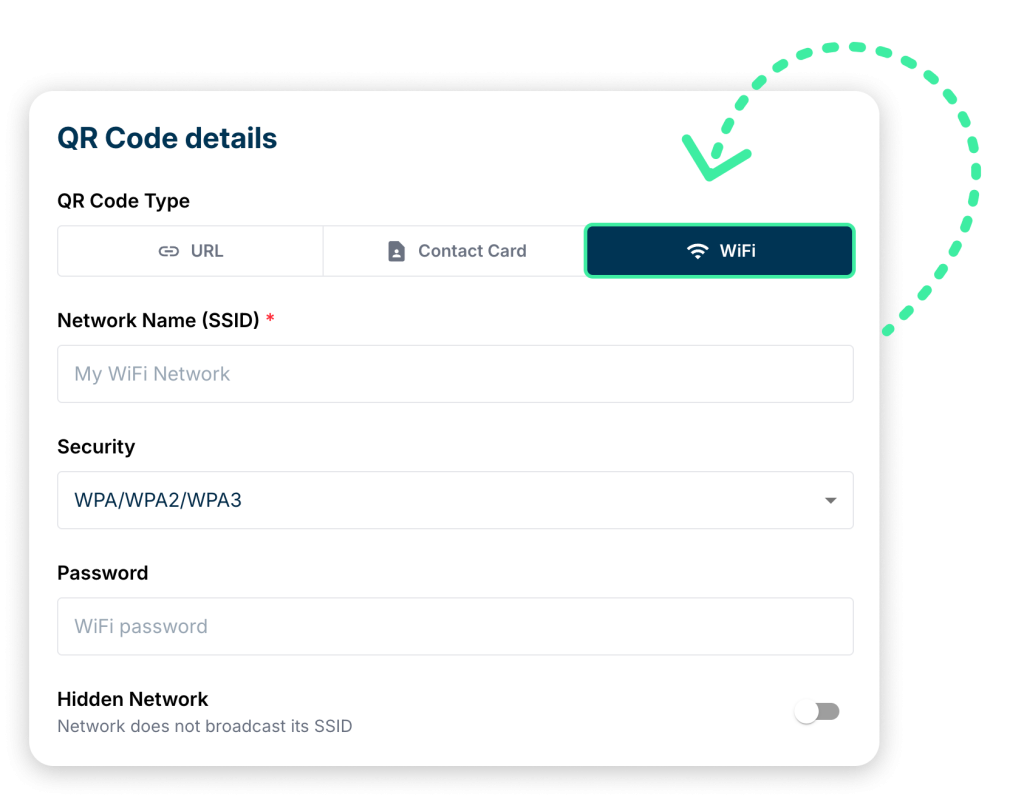
- Go to QR Chameleon’s QR Code Generator
- Select the WiFi option from the QR Code Type
- Enter your network name (SSID)
- Enter your password
- Select your security type (WPA/WPA2 is most common)
- Click “Generate QR Code”
Step 3: Customize (Optional)
Make your QR code match your brand:
- Add your logo to the center
- Change colors to match your space
- Add a frame with “Scan for WiFi” text
Step 4: Download and Print
Download your QR code as PNG or SVG. Print it and place it somewhere visible—on a table tent, wall sign, or welcome card.
Where to Use WiFi QR Codes
Restaurants & Cafes
Print the QR code on table tents, menus, or receipts. Customers connect instantly without asking staff for the password.
Pro tip: Use a dynamic QR code so you can update the password without reprinting.
Airbnbs & Vacation Rentals
Include the WiFi QR code in your welcome guide or frame it near the router. Guests love not having to hunt for passwords.
Offices & Coworking Spaces
Display QR codes in conference rooms and common areas. New clients and visitors connect without IT support.
Retail Stores
Offer guest WiFi to keep customers in-store longer. A QR code at the entrance or checkout makes it effortless.
Hotels & B&Bs
Add the QR code to key cards, room signs, or the welcome folder. Reduces front desk questions.
Events & Conferences
Print large QR codes on signage so attendees can connect quickly. Essential for venues with poor cell service.
Your Home
Frame a QR code in your guest room or living area. Friends and family connect without you interrupting dinner to spell out the password.
Create Dynamic WiFi QR codes — Free and Fast
Start for free — no credit card required.
Create Your Free WiFi QR Code NowWiFi QR Code Best Practices
Use a Guest Network
Don’t share your main network password. Create a separate guest network with its own password. This keeps your personal devices isolated.
Most modern routers support guest networks—check your router settings or app.
Use a Dynamic QR Code
A dynamic WiFi QR code lets you change the password anytime without reprinting. The QR code stays the same, but the destination updates.
This is critical if you:
- Change passwords regularly (recommended for businesses)
- Have seasonal rentals
- Need to revoke access
Keep It Visible But Not Too Public
Place QR codes where legitimate guests can scan them, not where random passersby could abuse your network.
Good placements:
- Inside your establishment
- On private welcome materials
- In locked common areas
Avoid:
- Street-facing windows
- Public exterior walls
Include Clear Instructions
Not everyone knows how to scan QR codes. Add text like:
- “Point your phone camera at the code to connect”
- “Scan for free WiFi”
Test It First
Before printing 50 copies, scan the QR code yourself on both iPhone and Android. Make sure it connects properly.
Static vs. Dynamic WiFi QR Codes
| Feature | Static | Dynamic, like QR Chameleon |
|---|---|---|
| Password changes | Must reprint QR code | Update anytime, same QR |
| Tracking | No analytics | See scan information |
| Cost | Free | Free or paid tiers |
| Best for | Home use, permanent passwords | Businesses, rentals, updating passwords |
For personal use with a password you never change, static is fine. For most all other situations where you would need the ability to change or update the WiFi information, password, etc., choose dynamic.
How to Scan a WiFi QR Code
iPhone (iOS 11+):
- Open the Camera app
- Point at the QR code
- Tap the notification that appears
- Tap “Join” to connect
Android (9+):
- Open the Camera app (or Google Lens)
- Point at the QR code
- Tap the WiFi prompt
- Confirm to connect
Older phones may need a QR scanner app, but most devices from 2018+ work natively.
Troubleshooting
“The QR code won’t scan”
- Make sure there’s enough contrast (dark code on light background)
- Ensure the code isn’t too small—minimum 1 inch for close scanning
- Clean smudges or damage on the printed code
“It scans but doesn’t connect”
- Double-check the password (case-sensitive!)
- Verify the security type matches your router
- Make sure you’re in range of the network
“My guests can’t find the network”
- The SSID might be hidden—create a new QR code with “Hidden Network” enabled
- Check that your router is also broadcasting on 2.4GHz (some phones struggle with 5GHz-only)
Frequently Asked Questions
Yes—if you use a guest network. The QR code just stores the password in a machine-readable format. Anyone who can see the printed password could type it manually anyway.
The password must be encoded in the QR code for automatic connection to work. If you’re concerned about security, use a guest network with a separate password.
The QR code itself doesn’t expire. But if you change your WiFi password, the old QR code won’t work anymore (unless you used a dynamic QR code from QR Chameleon).
Yes—if you are using a dynamic QR code. A QR Code from QR Chameleon shows scan analytics so you can see how many guests connected and more.
Yes. When creating the QR code, check the “Hidden Network” option. The phone will connect even if the SSID isn’t broadcast.
Create Your WiFi QR Code Now
Stop spelling out passwords. Create a free WiFi QR code in seconds:
Your guests—and your voice—will thank you.