

An Amazon wishlist QR code turns your wishlist’s shareable link into a scannable code that anyone can open with their phone camera — no typing, no copy-pasting, no hunting through long URLs. It works on baby shower invitations, classroom doors, wedding registry cards, and anywhere else paper or screens exist.
You’ve put together the perfect Amazon wishlist — 14 items for the baby shower, every supply your classroom needs for the fall semester, or the exact espresso machine your partner should absolutely not buy you a gift card instead of. The list is ready. Now you need people to actually find it.
You could copy the URL and paste it into a group chat. But Amazon wishlist links are absurdly long, they break across text messages, and half the people in the thread won’t bother clicking a link that looks like it was generated by a robot having a seizure. You could email it, but emails get buried. You could post it on Instagram, but you can’t put clickable links in captions.
A QR code fixes all of this. One scan, straight to your wishlist. Print it on a baby shower invitation, tape it to your classroom door, slip it into a wedding RSVP — it works everywhere paper or screens exist. And the best part? It takes about three minutes to create one.
Here’s exactly how to do it.
Make your Free Amazon Wishlist QR code
Paste your Amazon wishlist link and create your QR code which comes with scanning and tracking analytics. All free.
Update your QR Code anytime without reprinting.
Step 1: Set Up Your Amazon Wishlist
If you already have a wishlist ready, skip ahead. If not, here’s the quick version.
Create a New List
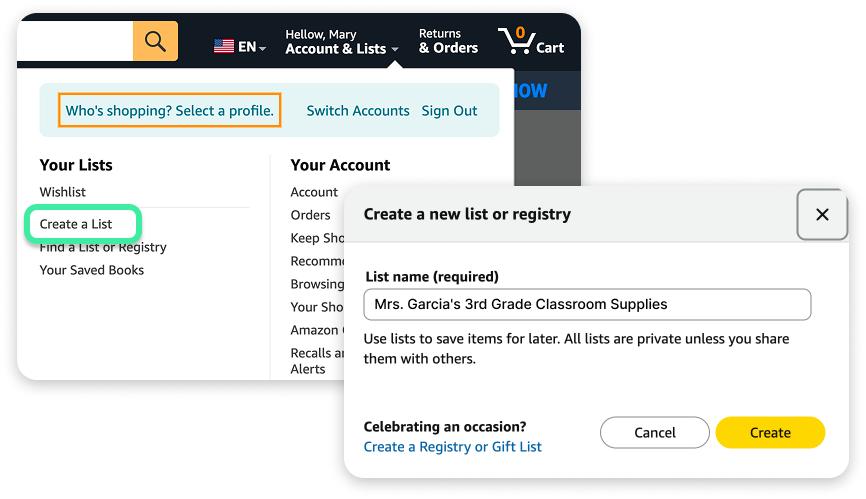
Log in to your Amazon account, hover over Account & Lists in the top navigation, and click Create a List. Give it a clear name — “Mrs. Garcia’s 3rd Grade Classroom Supplies” or “Jake & Sarah’s Baby Registry” — so anyone who lands on it knows exactly what they’re looking at.
Add Items
Browse Amazon and click Add to List on any product page. Choose the list you just created. Add as many items as you need. For gift registries, include a range of price points so guests have options.
Set Your Privacy
This is the step most people forget. Go to Your Lists, click the three dots next to your list name, and select Manage List. Under privacy, choose Public or Shared — if your list is set to Private, the QR code will lead to a dead end.
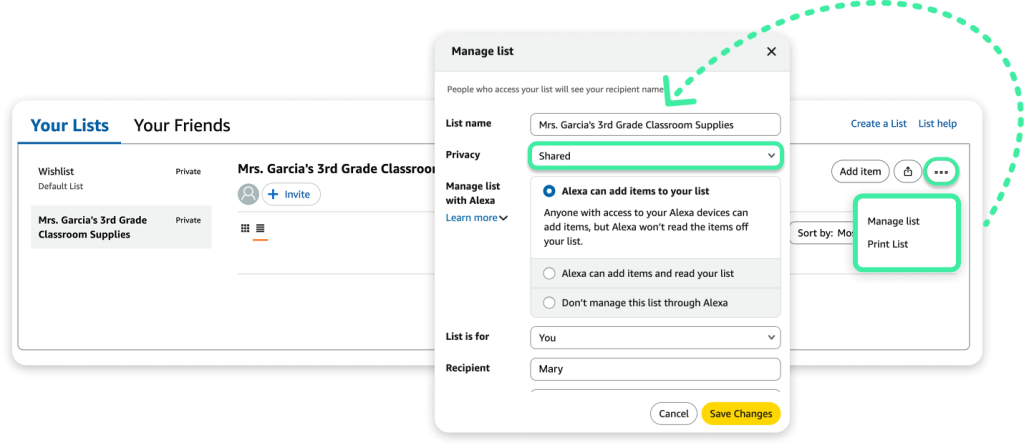
For a View Only link, people can see items and purchase them without editing your list. For View and Edit, they can add or remove items. Most people want View Only.
Step 2: Copy Your Amazon Wishlist URL
Go to Your Lists, find the wishlist you want to share, and click Invite or Send list to others. Select Copy link.
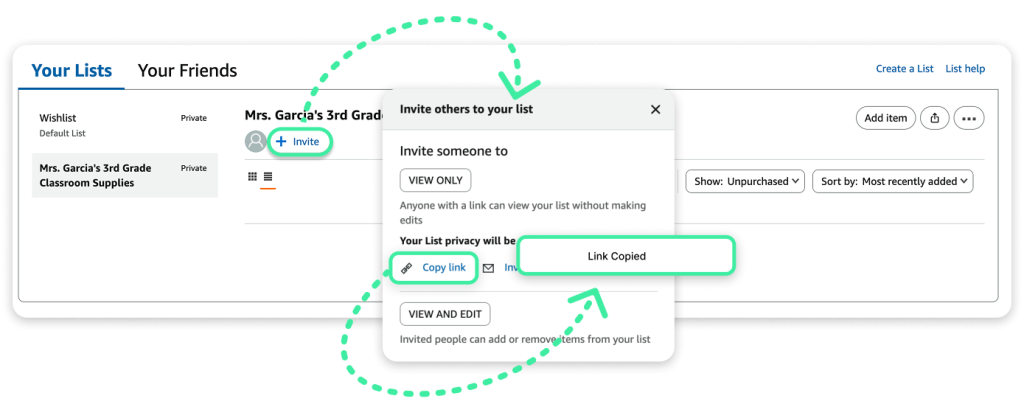
That’s the URL you’ll turn into a QR code. Paste it somewhere you won’t lose it — a notes app, a draft email, wherever.
One thing to watch: Amazon sometimes generates URLs with tracking parameters that make them incredibly long. Don’t worry about that — when you generate a QR code with a platform like QR Chameleon, the destination URL is automatically converted into a short link behind the scenes. The QR code pattern encodes the short link, not the long raw Amazon URL.
That means you get a simpler, cleaner QR pattern regardless of how long the original URL is — which means faster scans and more room for adding customization like logos and colors.
Step 3: Generate Your QR Code for Amazon Wishlist
The easiest way to get started: paste your Amazon wishlist link into the Make your Free Amazon Wishlist QR code box at the top of this page and click Create my Amazon QR code. You’ll create a free account in seconds and land directly in the QR code editor. The free plan includes 2 QR codes per month. Here’s the full process:
Paste Your URL
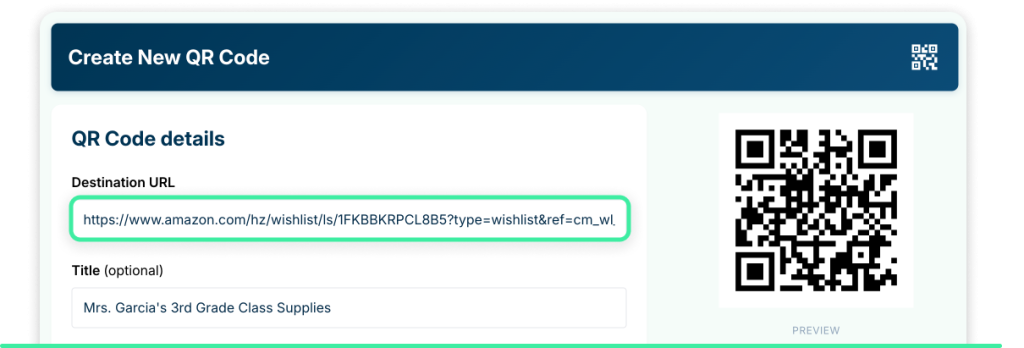
With your Amazon wishlist link copied from the previous step, paste your link into the Destination URL destination field. You can also title the qr code to keep track of it later.
Why Dynamic QR Codes Matter for Wishlists
Some QR code generators give you a static code — the Amazon URL baked directly into the QR pattern. If you change your wishlist URL later, you’d need to generate and reprint a brand new code. That’s a problem for wishlists, because lists change constantly. Items sell out. You add new things. You create a fresh list for the holidays.
The better approach: a dynamic QR code that points to a short redirect link. You can change the destination URL anytime without touching the printed code. You also get scan analytics — how many people scanned it, when, and from where. Platforms like QR Chameleon create dynamic QR codes by default — every code automatically uses a short link, so the pattern is always clean and the destination is always editable.
Customize the Design
Most generators let you change colors, add a logo, and pick different dot patterns. A few tips:
- Keep high contrast. Dark dots on a light background scan reliably. Light purple dots on a slightly lighter purple background? Not so much.
- Add a small logo in the center if you want to personalize it — an Amazon smile icon, your school logo, or a wedding monogram.
- Don’t go overboard. The more decorative elements you add, the harder the code is to scan. Test it on two or three phones before you print 200 invitations.
Download and Test
Download your QR code as a PNG for digital use or SVG for print (SVG scales to any size without getting blurry). Then scan it with your phone’s camera. Make sure it opens your exact Amazon wishlist — not your Amazon homepage, not a login page, not someone else’s list.
Ask one other person to test it on a different phone, too. What works on your iPhone might behave differently on an Android if the URL has quirks.
Create Dynamic QR codes for Amazon Wish List — Free, Fast, and Fully Reusable
Start now — no credit card required.
Create Your Free Amazon Wish List QR CodeWhere to Use Your Amazon Wishlist QR Code
The QR code is ready. Here’s where to put it so people actually scan it.
Wedding and Baby Shower Invitations
Tuck a small QR code onto your registry card or the back of your invitation. Label it “Scan to view our registry” so guests know what it does. It’s cleaner than printing a 90-character URL, and it lets guests browse your list while they’re sitting on the couch deciding what to get you.
For baby showers specifically, put the QR code on the thank-you cards, too. Guests who missed the shower can still contribute.
Amazon Baby Registry QR Code
Creating a QR code for your Amazon baby registry works exactly like a wishlist — copy the registry URL and generate a QR code. The registry link is found under “Share” in your baby registry settings.
Put the QR code on:
- Baby shower invitations and thank-you cards
- The nursery door at a sprinkle or reveal party
- Social media pregnancy announcements
Pro tip: Use a dynamic QR code so you can update the registry link if you create a new one for a second baby — same printed code, new destination.
Amazon Wedding Registry QR Code
Wedding registries often span multiple stores. A QR code on your save-the-date or wedding website can point directly to your Amazon registry — no hunting through a list of store links.
Include it on:
- Registry cards tucked into invitations
- Your wedding website’s registry page
- Bridal shower invitations
Teacher Classroom Wishlists
This is one of the most popular uses for an Amazon wishlist QR code — and for good reason. Teachers spend an average of $860 of their own money on classroom supplies each year. A QR code on the classroom door, in the back-to-school packet, or on a card at Open House gives parents a direct, frictionless way to help.
Print the QR code on a colorful card with your name and room number. Add a simple message: “Scan to support our classroom.” Parents can pull out their phone, scan, and order supplies from the parking lot before they’ve finished buckling the kids in.
Because the QR code uses a short link under the hood, you can update the destination throughout the year as needs change — without reprinting the card.
Birthday Parties
Nobody wants to ask “What do you want for your birthday?” over text and then try to remember the answer three weeks later. A QR code on the invitation removes the guesswork entirely. Guests scan, browse, pick something from the list, done.
Holiday Gift Exchanges
Family gift exchanges get complicated fast. Create a wishlist for each person, generate a QR code for each, and share them in a group chat or print them on cards. Everyone has access to exactly what everyone else wants — no more “I already got them that” group text disasters.
Social Media Profiles
Instagram won’t let you put clickable links in captions, but you can share a QR code image in your story or as a post. TikTok creators do this too — showing the QR code on screen for a few seconds while saying “scan to see my Amazon favorites.” For tracking which platform drives the most scans, add UTM parameters to your wishlist URL before generating the QR code. For link-in-bio situations, you can shorten the wishlist URL and add it there alongside the QR code.
Nonprofit and Fundraiser Supply Drives
Churches, community centers, food banks, and shelters use Amazon wishlists for supply drives. A QR code on a flyer or poster lets donors scan and order directly — the supplies ship straight to the organization. No drop-off logistics, no sorting through bags of random donations.
Common Amazon Wishlist QR Code Mistakes to Avoid
Forgetting to Set the List to Public
The number one reason an Amazon wishlist QR code “doesn’t work” is because the list is set to Private. Double-check your list privacy settings before generating the QR code.
Using a Screenshot Instead of a Downloaded Image
If you screenshot the QR code from your screen instead of downloading the actual file, you’ll get a lower-resolution image that may not scan reliably — especially when printed small. Always download the file directly from the generator.
Printing Too Small
A QR code needs to be at least 2 x 2 cm (about 0.8 x 0.8 inches) to scan reliably. On a business card or invitation insert, that’s usually fine. On a poster being viewed from across a room, you’ll want it much larger — at least 3 x 3 inches.
Not Testing Before Printing
Print one copy first. Scan it. If it works, print the rest. If it doesn’t, you’ve saved yourself a frustrating (and expensive) reprint.
Using a Generator That Doesn’t Support Editing
If you’re a teacher updating your supply list every quarter, or you manage a wishlist that changes seasonally, you need a QR code where the destination can be changed later. Some free generators create static codes that lock you into the original URL permanently. A platform like QR Chameleon creates dynamic codes by default, so you can swap the destination anytime — no reprint needed.
Why Dynamic QR Codes Are Essential for Amazon Wishlists
Not all QR code generators work the same way. Some create static codes — the raw URL baked into the pattern, no editing, no analytics. Here’s why that’s a problem for wishlists:
| Static QR Code | Dynamic QR Code | |
|---|---|---|
| URL locked in? | Yes — permanent | No — editable anytime |
| Scan analytics? | No | Yes (scans, devices, locations) |
| Reprint if URL changes? | Yes | No |
| QR pattern complexity | Depends on URL length | Always clean — uses a short redirect |
| Best for | Unchanging links (a fixed webpage) | Anything that updates (wishlists, registries, classroom lists) |
Amazon wishlists change constantly. Items sell out. You add new things. You create a new list for the holidays. With a dynamic code, you just update the link — the printed code stays the same. That’s why 79% of businesses choose dynamic QR codes — and why platforms like QR Chameleon make every QR code dynamic by default.
Frequently Asked Questions
Does Amazon generate a QR code for wish lists?
No. Amazon provides a shareable link for your wishlist, but it doesn’t generate a QR code for you. You’ll need to use a separate QR code generator to convert that link into a scannable code.
Can you make a QR code for an Amazon baby registry?
Yes — the process is identical to creating one for a regular wishlist. Copy the shareable URL from your Amazon baby registry and paste it into a QR code generator. The resulting code will take people directly to your registry when scanned.
How do I share my Amazon wish list without sending a long link?
Create a QR code from your wishlist URL. You can print the code on invitations, cards, or flyers, or share the image digitally on social media stories and group chats. People scan and go straight to your list — no typing or pasting required.
Should I use a static or dynamic QR code for my Amazon wishlist?
Dynamic — always. Amazon wishlists change frequently as items sell out or you add new ones. A dynamic QR code lets you swap the destination URL without reprinting, and it tracks how many people scan the code. Some generators only create static codes, so make sure you’re using a platform like QR Chameleon that creates dynamic codes by default.
How do teachers share Amazon wishlists with parents?
Teachers typically create an Amazon wishlist with classroom supplies, generate a QR code from the list URL, and print it on a card or poster for the classroom door, back-to-school packets, or Open House handouts. Parents scan the code and can order supplies directly from their phone.
Can I change my Amazon wishlist after creating a QR code?
Yes — if your QR code is dynamic (which it will be on platforms like QR Chameleon), you can update the destination URL anytime without affecting the printed code. You can even point it to an entirely new wishlist. However, if you used a generator that created a static code, the original URL is permanently encoded and you’d need to create a new QR code.
What size should I print my Amazon wishlist QR code?
At minimum, 2 x 2 cm (0.8 x 0.8 inches). For invitations and cards, 1-2 inches square works well. For posters or flyers viewed from a distance, go with 3+ inches. Download the QR code as an SVG file for print so it scales cleanly to any size.
Is it safe to share my Amazon wishlist through a QR code?
Yes — as long as your list’s privacy settings are configured correctly. A “View Only” shared link lets people see items and purchase them but not edit your list. They won’t see your address or payment information. Amazon handles all of that on their end.
Can I create a QR code for my Amazon baby registry?
Yes — the process is identical to a wishlist. Go to your baby registry, click “Share,” copy the link, and paste it into a QR code generator. The QR code will take guests directly to your registry.
Does Amazon generate a QR code for registries?
No. Amazon provides a shareable link but not a QR code. You’ll need to use a separate QR code generator like QR Chameleon to create one from your registry URL.
If you want a dynamic QR code that lets you update your Amazon wishlist link anytime — plus scan tracking to see how many people actually use it — you can create one free at QR Chameleon.