
How to create a QR code for a link
The whole process takes under a minute and works for any URL — your website, a YouTube video, a Google Maps location, an Instagram profile, a Calendly booking page, an app store link, anything.
- Paste the URL into the generator above. Include the full address with
https://for best compatibility across phones and email clients. - Pick a color and dot style that matches whatever you’re printing it on. Keep contrast high — dark dots on light background scan most reliably.
- Click Save my QR code free. Sign up takes about ten seconds (no credit card), then download the QR as PNG (for digital uses) or SVG (for print).
Test the printed code on both an iPhone and an Android phone before printing the full run. Different cameras focus differently, and a code that scans cleanly on your iPhone 15 might struggle on a four-year-old Android.
How to make a QR code from a link or URL
“Link” and “URL” are interchangeable here — both mean a web address that opens in a browser when scanned. The generator above accepts any of:
- Standard URLs —
https://yoursite.com/page - URLs with query parameters —
https://yoursite.com/landing?utm_source=flyer - Short links —
qrch.am/abcorbit.ly/xyz(recommended for print, since shorter URLs make denser, more reliable QRs) - App deep links —
spotify://album/...oryoutube://watch?v=...(open the app directly, not the browser) - Mailto and tel links —
mailto:hi@you.comortel:+15551234567
The QR code itself is just a black-and-white pattern that encodes whatever string you put inside. The shorter the string, the simpler the pattern, and the more reliably the QR scans at small print sizes. Use a short link if you can.
What can you put inside a link QR code?
Anything that can be opened by a tap. Some of the highest-ROI uses we see:
- Landing pages for marketing campaigns, tracked with UTM parameters so you know which printed piece drove the visit (see our UTM parameters guide)
- Restaurant menus — pair a printed link QR with our WiFi QR Code Generator on the same table card
- Social media profiles — Instagram, TikTok, OnlyFans, LinkedIn — printed on stickers, business cards, or trade-show banners
- Linktree-style hub pages that point to all your social accounts in one spot
- Calendly / scheduling pages for client booking
- YouTube videos for product demos, instructional content, or testimonials
- Spotify tracks or playlists for events, album launches, or business soundtracks
- Google Maps locations for “how to find us” signs
- App store listings for promoting downloads from print or in-store
- Donation, payment, or Venmo links — see our Venmo QR code guide for that specific use

Static vs dynamic link QR codes — when each makes sense
Standard (“static”) link QR codes encode the destination URL directly into the image. Once printed, the destination can’t change. If your URL moves, the QR is dead. If a campaign ends, the QR keeps pointing at it.
Dynamic link QR codes encode a short tracking URL (like qrch.am/abc) that redirects to your real destination — and you can change that destination anytime from a dashboard without reprinting the QR. Two big benefits:
- Update without reprinting — campaign URL moves, landing page gets redesigned, you switch CMS platforms — none of it requires throwing out 5,000 printed flyers
- Track every scan — total scans, unique visitors, time of day, city/country, device type. Static QRs from generic generators don’t track anything.
For a one-off personal use (your wedding RSVP site, a one-time event flyer), static is fine. For anything you’ll print at scale or want to measure, dynamic earns its keep ten times over. Our deeper guide on static vs dynamic QR codes covers the full trade-off.
Where to put a printed link QR code
Anywhere a clickable URL doesn’t fit. Some of the most effective placements:
- The corner of a printed business card (pair with a vCard QR on the back for a complete digital handshake)
- The cover of a restaurant menu, magazine ad, or event program
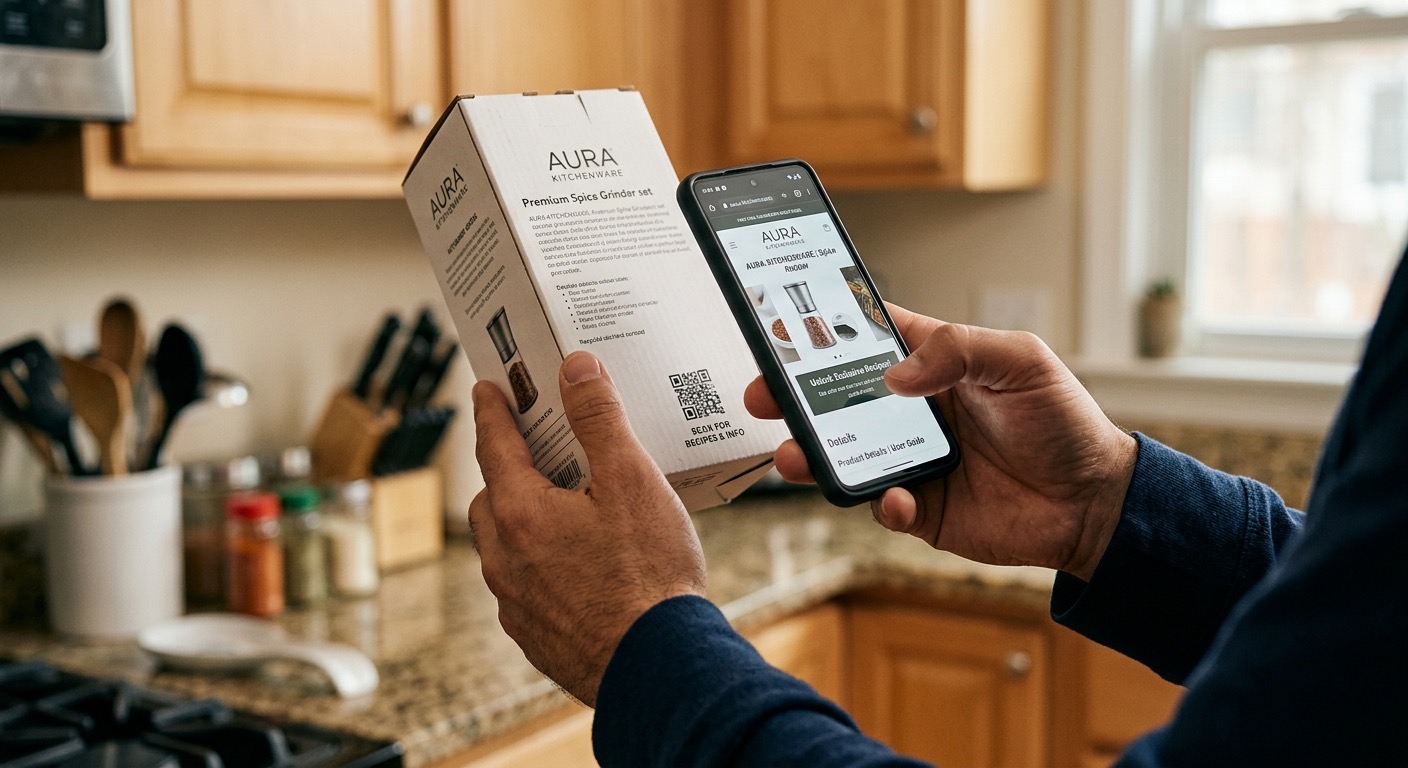
- The back panel of product packaging — links to user manual, warranty registration, or recipe ideas
- Trade show booth banners, conference name badges, swag stickers
- Direct mail pieces — reply-by-scan instead of reply-by-mail
- Real estate yard signs — link to the listing page (see our real estate QR guide)
- Email signatures and PDFs for “tap to book a call” CTAs
- Wedding invitations, save-the-dates, party invites — link to RSVP, registry, or directions
Wherever you put it, label it. A QR code with no caption looks like a coupon, a survey, or a marketing trick. A two-word label — “Scan to RSVP”, “Scan to book”, “Scan for menu” — removes the guesswork and lifts scan rates dramatically.
Designing for the medium: business cards, signs, billboards
Two rules cover ninety percent of bad QR experiences. First: contrast. Dark dots on a light background scan fastest. Light dots on a dark background can work, but the contrast ratio needs to be high — pale gray on white is a recipe for failed scans. The generator’s preset colors are all in the safe zone.
Second: size relative to scan distance. The handy rule is the 10:1 ratio — for every 10 inches of scan distance, the code should be at least 1 inch wide. Some practical sizes:
- Business cards or stickers (held in hand, ~6 inches): 0.8–1 inch QR
- Flyers, brochures, magazine ads (arm’s length, ~12 inches): 1.2–1.5 inch QR
- Posters and trade-show signs (3–6 feet away): 4–7 inch QR
- Storefront windows or billboards (10+ feet away): 12+ inch QR
When in doubt, print one, walk away from it, and scan with your own phone before printing 100. Our QR code minimum size guide goes deeper on print sizing across every common medium.
Why some link QR codes don’t scan (and how to fix yours)
If your printed QR refuses to scan, the cause is almost always one of these five:
- Too small for the distance. A 0.4-inch QR on a wall sign is unscannable from across the room. Apply the 10:1 ratio above.
- Low contrast. Pale colors, busy backgrounds, or printing on dark stock kills scannability. Always go dark-on-light with a clean margin (the “quiet zone”).
- URL too long. Long URLs encode into denser QR patterns with smaller, harder-to-read modules. Use a short link (or our dynamic QR) and the same physical size suddenly works.
- Glossy paper + bright lighting. Reflections from windows or overhead lights wash out the pattern. Matte cardstock scans more reliably.
- Crowded layout. QR codes need a white margin around them (at least 4 modules wide). Text or graphics jammed against the edges confuse scanners.
If none of those apply and the QR still won’t scan, regenerate it — sometimes the original file got corrupted or compressed during a copy-paste cycle. A fresh download from the generator above is the fastest fix.