
QR Chameleon

vCard QR Code Generator

Stop typing names from business cards.

Create a vCard QR code right here, free. One scan and your name, phone, email, and website land in their contacts — no typing, no app, no “wait, what was your last name again?”

autorenew Loading generator…

How it works

A vCard QR code in three small steps.

Most people finish before they’ve put their old business cards back in the drawer.

1

Add your contact details

Name, phone, email, organization, website. Everything stays in your browser until you save.

2

Match your brand

Pick a color and a dot style so it matches your brand or fits cleanly on a business card.

3

Save & download

Free account in 10 seconds. Download a print-ready PNG or SVG and watch every scan from your dashboard.

Use cases

Where a vCard QR Code Generator Pays for Itself

badge

Sales reps & field teams

Add it to your name badge or lanyard. Every conversation ends with a saved contact instead of a lost paper card. Pair with free scan analytics to see which events convert.

home_work

Real estate agents

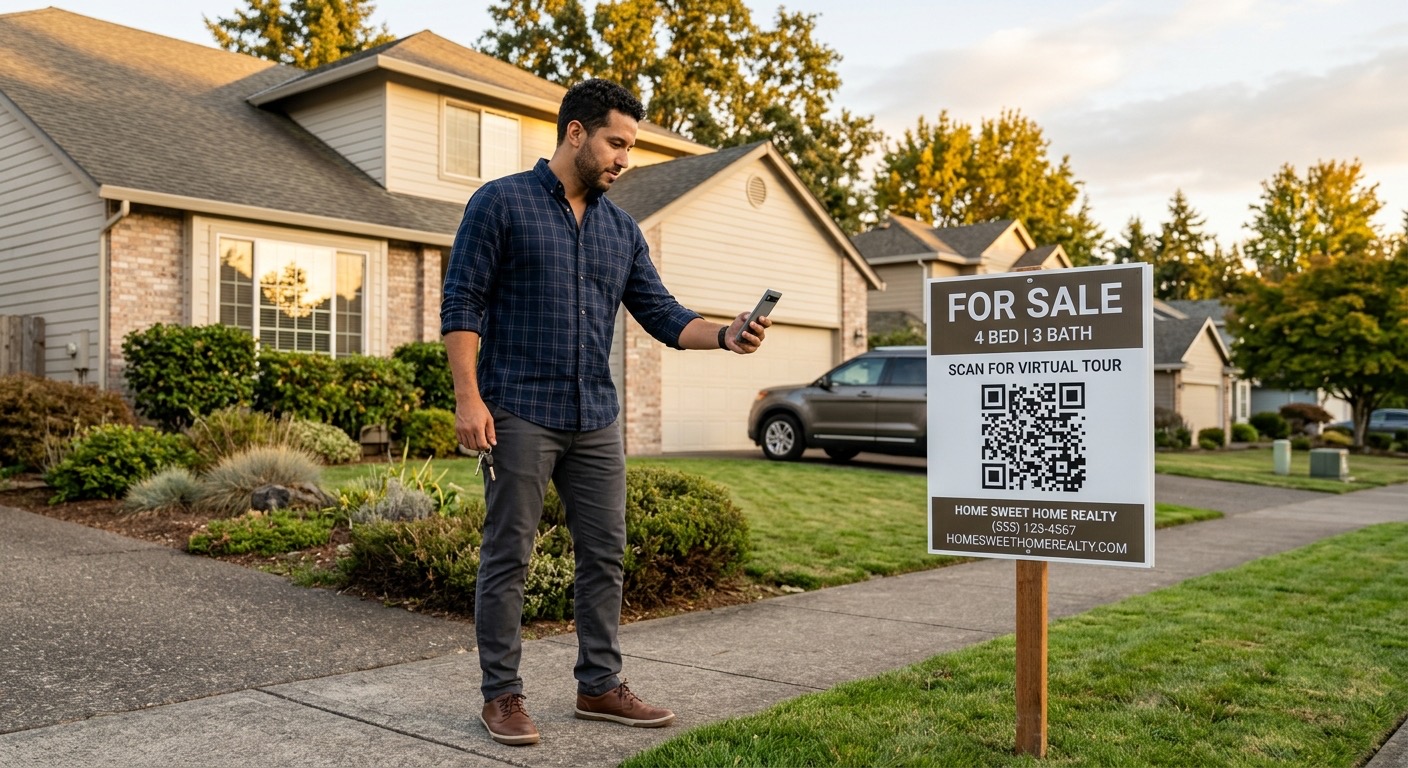
On every yard sign, open-house flyer, and listing brochure. Buyers scan once and your number is in their phone before the next showing.

event_available

Networking events & conferences

On your badge, your booth, your slide deck. Trades the awkward business-card shuffle for a single tap.

handyman

Service businesses

Plumbers, electricians, contractors — stick one on the truck, the invoice, the door hanger. Easy to call you back, easy to refer.

work

Job seekers & freelancers

Put it on your resume, portfolio, or LinkedIn QR sticker. Recruiters add you to contacts in one scan instead of mistyping your email.

mail

Email signatures & websites

Drop the QR in your email signature, contact page, or About section. Mobile visitors save your details without copy-pasting six fields.

vCard QR codes 101

Everything to know about vCard QR codes

A short tour of how vCard QR codes work, what to put in them, and the small details that decide whether yours actually saves to a phone cleanly.

What a vCard QR code actually does

A vCard QR code is a tiny, scannable instruction that says: add this person to your contacts. When someone points their phone camera at it, the phone reads the encoded contact card — name, phone, email, organization, website — and offers a one-tap “Add to Contacts” button. They tap once. You’re in their address book, with every field correctly filled, no typos.

It’s the modern version of handing someone a paper business card — except the recipient doesn’t have to type it in later, can’t lose it in a coat pocket, and your phone number lands with the country code intact instead of three digits short.

The vCard format: what’s inside the QR code

Under the hood, a vCard QR encodes a small text file in the vCard 3.0 format — the same format your iPhone or Android phone uses when it shares a contact via AirDrop or text. It looks roughly like this:

BEGIN:VCARD
VERSION:3.0
FN:Jane Doe
ORG:Acme Co.
TEL;TYPE=CELL:+15551234567
EMAIL:jane@acme.com
URL:https://acme.com
END:VCARD

The QR code wraps that text in a scannable image. Every modern phone speaks vCard natively, which is why no third-party app is needed. (You may also see MECARD mentioned online — that’s an older, more compact format from the early 2000s. We use vCard 3.0 because it supports more fields and is what every current phone expects.)

Which contact fields should you include?

At minimum: first name plus one way to reach you. Beyond that, more fields make the QR slightly denser (more dots, harder to scan when small), so be intentional. The goal is the digital equivalent of a business card — not your full LinkedIn profile.

  • Always include: name, phone or email, organization (if you have one).
  • Usually include: job title, website.
  • Skip unless relevant: mailing address (most contacts don’t need it), multiple phone numbers (pick your best one), notes field.

For phone numbers, always use the international format with the country code (+1 for US, +44 for UK, etc.). That way the contact saves correctly when the recipient travels or calls from abroad — a huge usability win for people in sales, real estate, and consulting.

A professional handing a printed business card with a QR code in the corner to another person at a networking event

Where to put the printed code

The best vCard QR codes go where someone is already deciding whether to remember you. Some examples that work well:

  • The corner of a printed business card — doubles its useful life
  • Your name badge at conferences and trade shows
  • The bottom of a real estate yard sign or open-house flyer
  • The back panel of a service truck (plumbers, electricians, contractors)
  • A sticker on the back of your laptop at coworking spaces
  • The signature block of your printed resume or portfolio
  • A branded sticker on your office door

Wherever you put it, label it. A QR code with no caption looks like a coupon or a survey. A two-word caption — “Save my contact” or “Tap to save” — removes the guesswork and lifts scan rates dramatically.

Designing for business cards: size, contrast, and scannability

Two rules cover ninety percent of bad vCard QR experiences. First: contrast. Dark dots on a light background scan fastest. The generator’s preset colors are all in the safe zone — if you customize, keep dark on light or test before printing.

Second: size. For a business card — held a few inches from the camera — aim for at least a 0.8–1 inch (2–2.5 cm) square QR. Small enough to fit comfortably alongside your name and title, large enough to scan reliably. Yard signs and trade-show booths need more: 3–6 inches for scan distances of a few feet. The handy rule of thumb is the 10:1 ratio — for every 10 inches of scan distance, the code should be at least 1 inch wide. (Our QR code minimum size guide goes deeper.)

One more thing: avoid glossy paper for printed business cards if you can. Reflections from overhead lights at conferences and restaurants can wash out the QR pattern. Matte cardstock scans more reliably across lighting conditions.
A person scanning a vCard QR code on a real estate yard sign with their phone camera in front of a suburban home

Updating your contact info — the static vs trackable trade-off

Standard vCard QR codes embed your contact info directly into the image. That’s a feature — it’s how the phone saves the contact without a server in the middle. But it’s also a tradeoff: the day you change jobs or your phone number, every printed copy of that QR code is out of date.

For most professionals this is fine — you reprint business cards every couple of years anyway. But for sales reps, real estate agents, and consultants who switch firms or rotate territories often, it’s a real cost. With a free QR Chameleon account, you can pair your printed QR with a dynamic short link that points to your current contact details — update once in the dashboard, every printed QR points to the new info instantly. No reprinting.

Is it safe to share your phone number on a vCard QR?

A vCard QR code is exactly as safe as the contact info it contains. If you’d put your phone number on a printed business card, you can put it on a vCard QR. The QR isn’t broadcasting it — only people who deliberately scan it see the details, the same way only people you handed a card to would have it.

If you’re privacy-conscious, two practical moves: (1) use a work phone, a Google Voice number, or a VoIP line as your “public” number, and (2) skip the home address field entirely — clients don’t need it, and it gets you in trouble if a printed card ends up somewhere unexpected. For a deeper look at vCard mechanics and the broader landscape of QR codes for business cards, our pillar guide covers the full picture.

FAQ

Everything you might wonder about WiFi QR codes.

Type your contact details into the generator above — at minimum your first name, with whichever of phone, email, organization, and website you want to share. Pick a color and dot style, then click "Save my QR code free." You’ll get a free QR Chameleon account in about 10 seconds and a print-ready PNG and SVG download. The whole process takes under a minute and no credit card is required.

Yes. Every iPhone running iOS 11 or newer reads vCard QR codes natively from the built-in Camera app. Open Camera, point it at the code, and tap the contact card preview that pops up — iOS shows the name, phone, and email and offers a one-tap "Add to Contacts" button. No third-party app required.

Yes. Every Android phone running Android 10 or newer reads vCard QR codes from its camera app the same way as iPhone — open camera, point at the code, tap the contact-card suggestion. On older Android versions, Google Lens (free, pre-installed on most phones) does the same thing.

vCard is the universal file format for digital contact cards (think .vcf attachments in email). It encodes a person’s name, phone, email, organization, and other details in a way every modern phone, email client, and CRM understands. A vCard QR code is just a vCard packaged into a scannable image so phones can save it in one tap.

At minimum, first name + one way to reach you (phone or email). Most people include name, phone, email, organization, title, and website — that’s the digital equivalent of a business card. Skip anything you wouldn’t put on a printed card. More fields = a denser QR code, so keep it tight.

Standard vCard QR codes embed your contact info directly into the image, so changing your phone number or job title means generating a new QR. With a free QR Chameleon account, you can pair a printed QR with a dynamic short link so you can update destinations later without reprinting — useful if you change jobs or phone numbers often.

It’s exactly as safe as printing it on a business card — anyone who can see the QR can save your details. For most professional uses (sales, real estate, services) that’s the whole point. If you’re privacy-conscious, use a work phone, a Google Voice number, or skip the phone field entirely and only share your email.

For a business card, 0.8–1 inch (2–2.5 cm) square is the sweet spot — small enough to fit alongside your printed details, large enough to scan reliably. For yard signs, posters, or trade-show booths, 3–6 inches scans well from a few feet away. Always test the printed code before printing 100 copies.

No special app needed. The native Camera app on iPhone (iOS 11+) and Android (10+) reads vCard QR codes and shows a one-tap "Add to Contacts" prompt. Older devices can use Google Lens or any free QR scanner from the App Store / Play Store.

Use SVG for anything you’re sending to a printer or designer (business cards, signs, brochures) — it scales infinitely without losing quality. Use PNG for digital uses (websites, slides, email signatures) or quick desktop printing.

Yes. The free generator lets you change the dot color, background color, and dot pattern. Logo placement and advanced styling (frames, custom corner shapes) are available on a free QR Chameleon account.

Standard vCard QR codes don’t track scans — they save the contact directly to the phone without going through any server. If you want scan analytics (how many, when, where), create a free QR Chameleon account and use a dynamic vCard QR that routes through a tracked link first. Same one-tap save experience, plus a dashboard showing every scan.

A vCard QR encodes your contact details directly — one scan, one tap to add to phone. A digital business card link (like Linktree or HiHello) opens a webpage that shows your details and offers a download button. The vCard QR is faster (no webpage in the middle) and works offline; the link version lets you update info anytime without reprinting. Many professionals use both.

Yes — vCard supports international formats out of the box. Use the full international format for phone numbers (e.g. +1 555 123 4567 for US, +44 20 1234 5678 for UK) so the contact saves with the country code intact and works when the recipient travels.

More generators

Create a free account
and start creating your
QR codes and short links today.

Create Your Free Account Now