
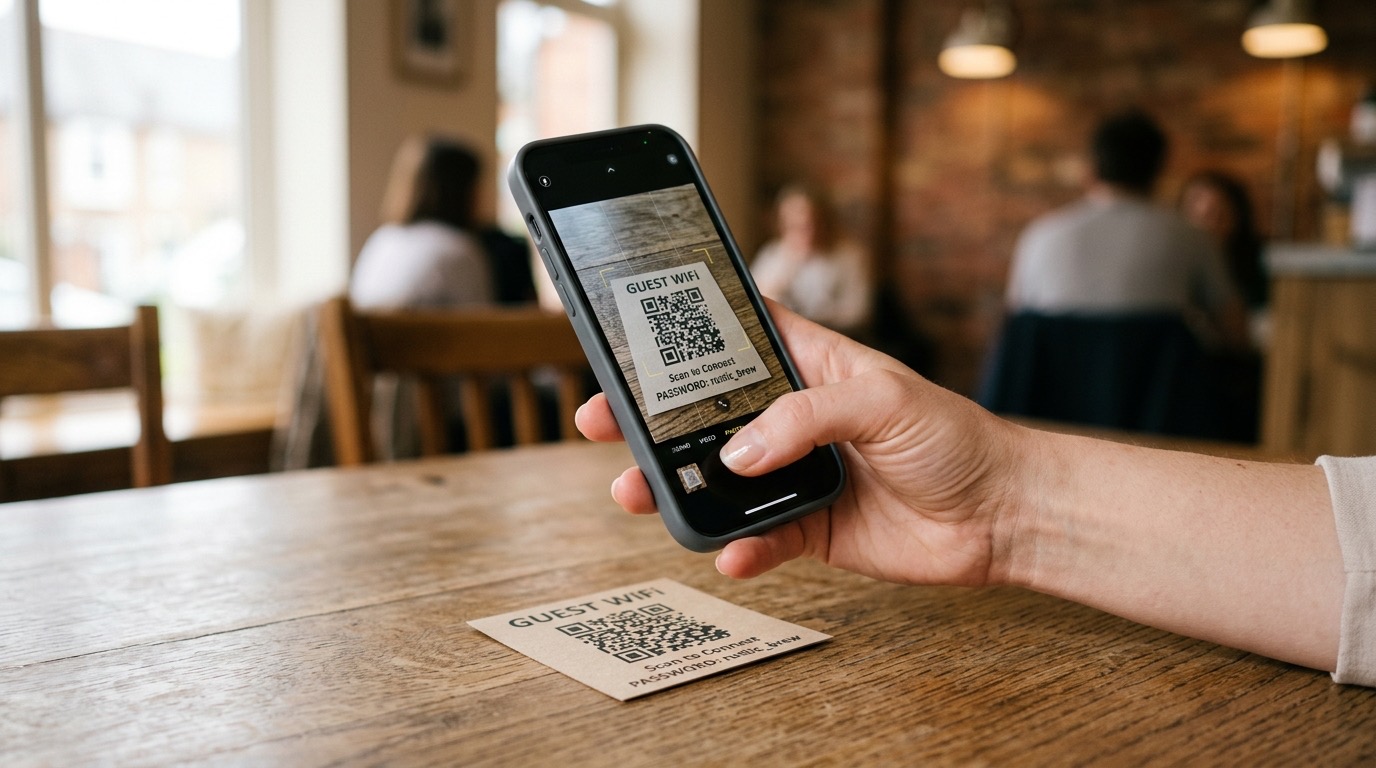
What a WiFi QR code actually does (and doesn’t do)
A WiFi QR code is a tiny, printable instruction that says: connect to this network with this password. When someone scans it with their phone’s camera, the phone reads three things — the network name (SSID), the security type, and the password — and offers to join. They tap once. They’re online. No typing, no autocorrect, no asking the bartender for the third time.
What it’s not: a link. A WiFi QR code doesn’t open a website, log a tap, or do anything else. It joins a network. That’s the whole job, and it’s the right tool when that’s what you need.
Which security type should I pick?
Most home and business routers built since about 2010 use WPA2 — and a growing number now use WPA3. Both work fine with the “WPA” option in the generator above; the QR format treats them as one family. Pick “WPA” unless you’re sure your router is set to something else.
WEP is the old standard from the 1990s. It’s still around on some hardware, but it’s not really secure anymore. If your router is set to WEP, this is a good week to log into the admin panel and switch it to WPA2.
Open means no password — common for free guest networks at cafés or public WiFi. Pick this and the password field disappears from the generator.
Does the WiFi QR code work on iPhone?
Yes — and it works without any third-party app. Every iPhone running iOS 11 or newer (released 2017, so essentially every iPhone in active use) reads WiFi QR codes natively from the built-in Camera app. Open Camera, point it at the code, and tap the yellow “Join ‘NetworkName’” banner that appears at the top of the screen. iOS handles the rest.
A few iOS-specific notes worth knowing:
- The Settings shortcut. If the camera prompt doesn’t show up (rare, but it can happen in low light), open Settings → Wi-Fi → Other…, then tap the QR code icon next to the password field. Same outcome.
- Sharing across Apple devices. A scanned WiFi QR is treated as a one-time connection and does not save to iCloud Keychain by default. To make it permanent on that iPhone, after connecting once go to Settings → Wi-Fi → tap the (i) next to the network → toggle “Auto-Join” on.
- Android works the same way. Every Android phone running Android 10 or newer reads WiFi QR codes from its camera app the same way — open camera, point, tap the banner.
Where to put the printed code
The best WiFi QR codes are placed where people are already going to look when they want to get online. Some examples that work well:
- A small card on every restaurant table — same place as the menu QR
- The welcome book in an Airbnb, on the page where you list the WiFi anyway
- A sticker on the back of every hotel room TV remote
- The cover of an event program, next to the schedule
- A magnet on the office fridge for visiting freelancers
- A sign by the front desk of a salon or waiting room
Wherever you put it, label it. A QR code with no caption looks like a coupon, a survey, or a marketing trick. “WiFi — scan to join” takes two seconds to add and removes all the guesswork.
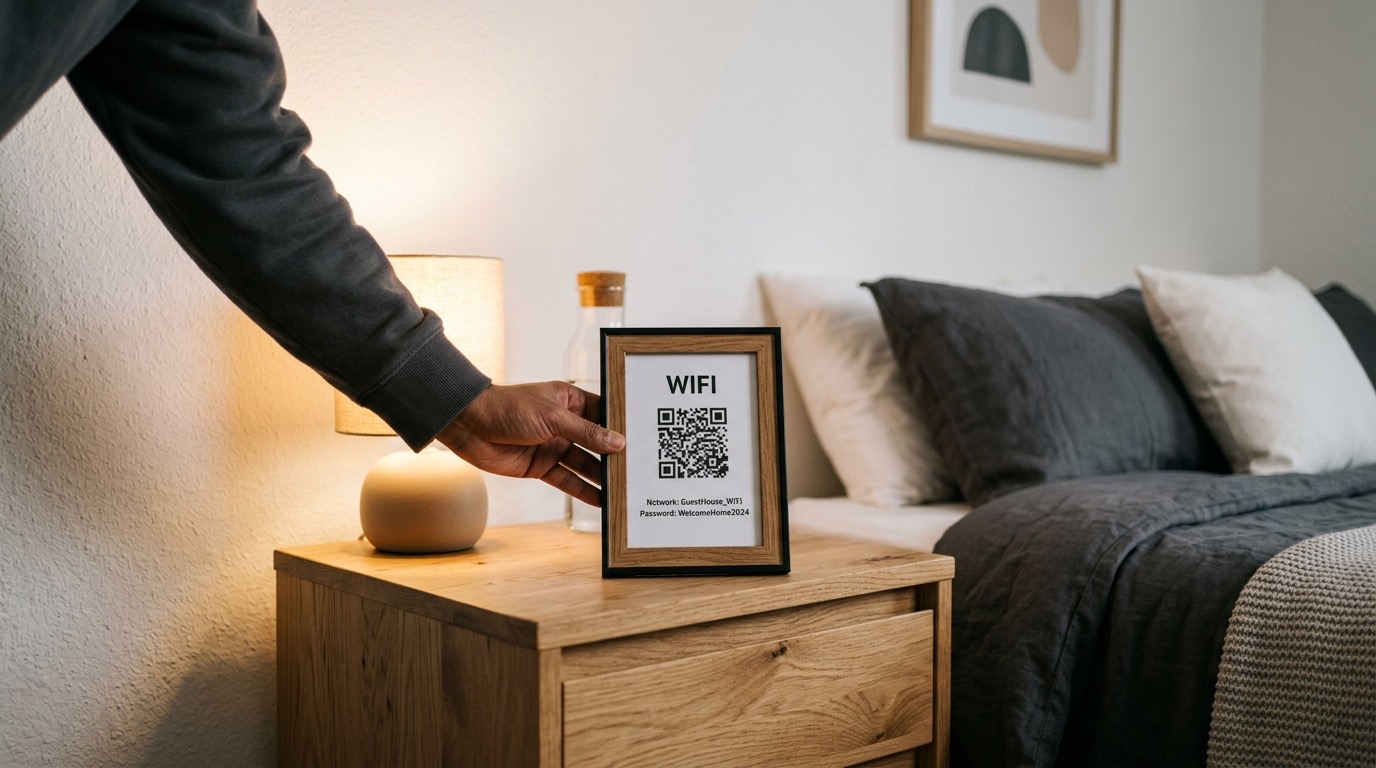
Printing a WiFi QR code as a guest sign
A printed WiFi QR sign is one of the highest-ROI uses of this format — print it once and it works for every guest, every visit, for as long as your network stays the same. A few tips for the sign itself:
- Size up. A guest sign sits across a room or on a wall, not in someone’s hand. Aim for at least a 3-inch (8 cm) QR code, ideally 4–5 inches.
- Frame it. A small picture frame turns the WiFi QR from “weird floating square” into “intentional design choice.” Standard 4×6 or 5×7 frames work well — print the code centered with the network name above and a “Scan to join WiFi” caption below.
- Add the network name in plain text. People glance at signs faster than they scan them. Showing the SSID lets visitors confirm they’re joining the right network before they even raise their phone.
- Avoid glossy paper in bright rooms. Reflections from windows or overhead lighting can wash out the QR pattern. Matte cardstock scans more reliably, especially in sunrooms or open kitchens.
- Test from where guests will stand. Print one, walk across the room, and scan with your own phone before making more copies.
For Airbnb hosts and home offices specifically, a framed nightstand sign and a fridge magnet are the two highest-use locations — they put the network info exactly where guests look first.
Print size, contrast, and the “does it actually scan?” test
Two rules cover ninety percent of bad QR code experiences. First: contrast. Dark dots on a light background scan fastest. Light dots on a dark background can work, but the contrast ratio needs to be high — pale gray on white is a recipe for failed scans. The generator’s preset colors are all in the safe zone.
Second: size relative to scan distance. A handy rule is the 10:1 ratio — for every 10 inches of scan distance, the code should be at least 1 inch wide. So a code on a tabletop card people pick up (6 inches away) only needs to be ~0.6 inches; a code on a wall sign people scan from 6 feet away needs to be at least 7 inches. When in doubt, print one, walk away from it, and scan with your own phone before printing 100. (Our QR code minimum size guide goes deeper if you’re printing at scale.)
The thing nobody mentions: changing your WiFi password
Standard WiFi QR codes embed the password directly into the image. That’s a feature — it’s how the phone connects without a server in the middle. But it’s also a tradeoff: the day you change your password, every printed copy of that QR code stops working.
For most homes and small businesses, this is fine — you change the WiFi password roughly never. But for a coworking space, conference venue, or hotel that rotates passwords on a schedule, it’s a real cost. With a free QR Chameleon account, you can pair your printed QR with a dynamic short link and update what it points to whenever you need — without reprinting.
Is sharing your WiFi password as a QR code safe?
A WiFi QR code is exactly as safe as the password it contains. If you’d say the password out loud to a guest, you can put it on a QR code. If you wouldn’t — for example, your main WiFi has access to a shared printer, a NAS, or smart-home devices you’d rather not expose — set up a separate guest network on your router and put the QR code on that one.
Most modern routers support a guest network in their admin panel; it takes a few minutes and earns its keep. It also means you can change the guest password without disrupting your own devices. For a deeper walkthrough of WiFi QR codes from a security and tech-spec angle, see our complete WiFi QR code guide.