


You hand someone your business card. They glance at it, nod politely, and slip it into their pocket. Later that day — or maybe a week later — they fish it out and try to add you as a contact. They squint at your email address. Was that an underscore or a hyphen? Is that a zero or the letter O?
By the time they’ve typed everything in (if they bother at all), the moment has passed. Your card ends up in a drawer, your contact info never makes it into their phone, and the connection you worked to build evaporates.
That’s not a minor inconvenience. 88% of paper business cards get thrown away within one week. And 40% of manually entered contact data contains at least one mistake. Your carefully designed card is working against you the moment it leaves your hand.
A QR code fixes this entirely. One scan and your contact information flows directly into their phone — no typing, no squinting, no friction. Instead of hoping they’ll manually enter your details, you hand them a card that does the work for them.
This guide walks you through exactly how to create a QR code for your business card — including how to build a vCard QR code that saves your contact info directly to someone’s phone.
With QR code adoption growing, adding a code to your business card is becoming standard practice.
Why Put a QR Code on Your Business Card?
Business cards have a problem: they’re static. Whatever you print is frozen in time. Change jobs? New cards. Update your phone number? New cards. Want to share your portfolio, LinkedIn, and scheduling link? Not enough room.
A QR code solves all of this. Here’s what it actually does for you.
Instant Contact Saving with vCard
When someone scans a vCard QR code on your business card, your contact information saves directly to their phone. Your name, number, email, company, job title, and website all transfer with one tap. The accuracy rate goes from “hopefully they got it right” to 100%.
No app download required — every modern iPhone and Android phone has a built-in QR scanner when using the camera.
Link to More Than Fits on a Card
A standard business card has 3.5 by 2 inches of space — roughly 100 to 150 characters before it looks crowded. A vCard QR code can encode over 4,300 characters, including multiple phone numbers, email addresses, website URLs, social profiles, and a physical address.
This is especially valuable for real estate agents who need to share property listings, scheduling links, and contact info from a single card.
The physical card becomes a gateway, not a limitation.
Track Who Actually Scans Your Card
With a dynamic QR code, you can see how many people scan your card, when they scan it, and where they are when they do. That’s intelligence you’d never get from a traditional card.
Business card QR codes average a 34% scan rate — nearly three times higher than advertising QR codes. People actually use them.
Update Without Reprinting
Changed companies? New phone number? With a dynamic QR code, you update your contact info from a dashboard. The printed code stays the same, but the information it delivers changes instantly. No reprinting, no waste.
What Should Your Business Card QR Code Link To?
Before you generate anything, decide where you want to send people. The right choice depends on your goals.
Option 1: vCard (Direct Contact Save)
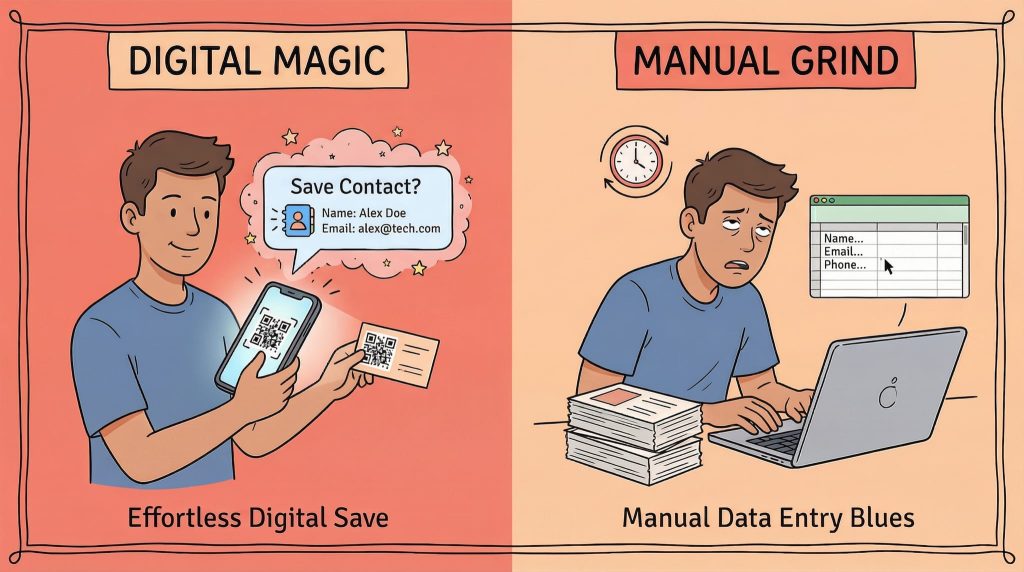
A vCard QR code contains your contact information encoded directly in the code. When someone scans it, their phone prompts them to save you as a new contact — your name, phone, email, company, title, website, and address all pre-filled.
Best for: Networking events, conferences, trade shows (don’t forget WiFi QR codes for your booth), client meetings — any situation where you want the fastest path from handshake to saved contact.
Why it works: There’s zero friction. The person doesn’t need to visit a website, create an account, or do anything except tap “Save.” Your contact info lands in their phone book in under five seconds.
Option 2: LinkedIn Profile
Link directly to your LinkedIn profile. One scan and they’re looking at your full professional history, can send a connection request, and have easy access to message you.
Best for: Professional networking, job seekers, B2B contexts where LinkedIn is the primary platform.
Option 3: Personal Website or Portfolio
Send people to your website, portfolio, or online resume. They get the full picture of who you are and what you do.
Best for: Creatives, freelancers, consultants, anyone whose work speaks louder than a job title.
Option 4: Landing Page with Multiple Links
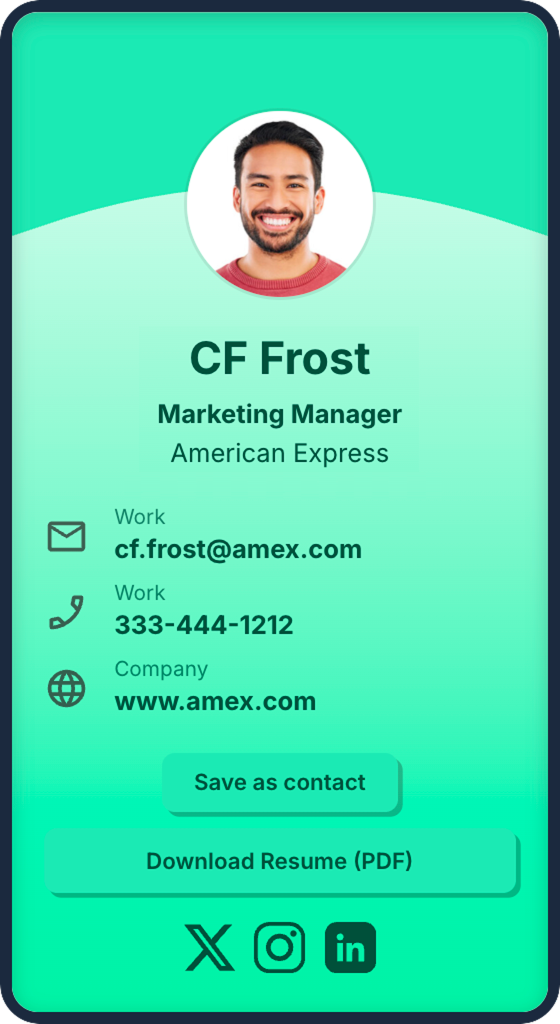
Create a landing page with all your contact information, social links, and key actions — book a meeting, download a resume, view your portfolio, even accept payment with a Venmo QR code. This gives you full control over the experience and lets you update everything without changing the QR code.
Best for: People who want maximum flexibility and a polished digital presence. QR Chameleon’s Pages feature lets you build these landing pages directly inside the platform and auto-generate a QR code for them.
How to Create a vCard QR Code for Your Business Card
Here’s the step-by-step process for creating a QR code that saves your contact info directly to someone’s phone.
Step 1: Choose a vCard QR Code Generator
You need a generator that supports vCard QR codes specifically — not every QR tool does. Look for one that offers:
- vCard format support (not just URL QR codes)
- Dynamic codes so you can update your info later without reprinting
- Design customization to match your brand colors
- Scan tracking so you know how your cards perform
QR Chameleon supports vCard QR code generation with full customization, scan analytics, and the ability to update your contact details after being printed. Get started with the free plan — 2 QR codes per month, full analytics included. If you want to skip ahead, our free vCard QR Code Generator lets you build one in your browser before signing up.
Step 2: Enter Your Contact Information
Fill in the fields you want included on your vCard. At minimum, include:
- Full name and job title
- Company name
- Phone number (mobile and/or office)
- Email address
- Website URL
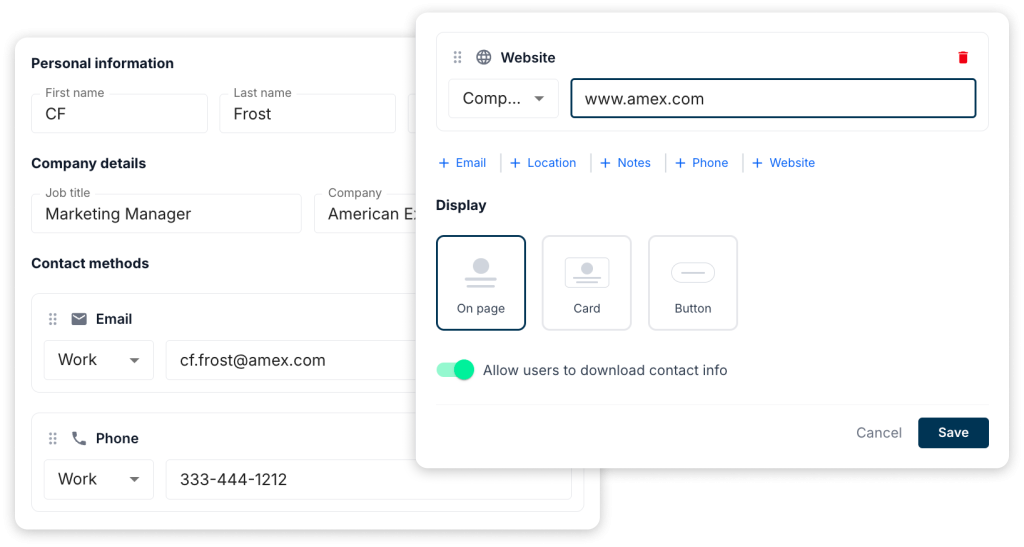
You can also add your physical address, multiple phone numbers, and social media profiles. However, every field you add increases the density of the QR code pattern — which can affect scannability at small sizes.
Tip: Include only the information you want people to have. If you don’t want your office address saved to every contact’s phone, leave it out.
Step 3: Customize the QR Code Design
Download your QR code in the right format for printing:
- SVG — ideal for business cards. Scales to any size without losing quality. Works perfectly with professional print services.
- PNG — works for most print applications. Download at the highest resolution available.
- JPEG — acceptable but not ideal. Compression can soften the edges of QR modules.
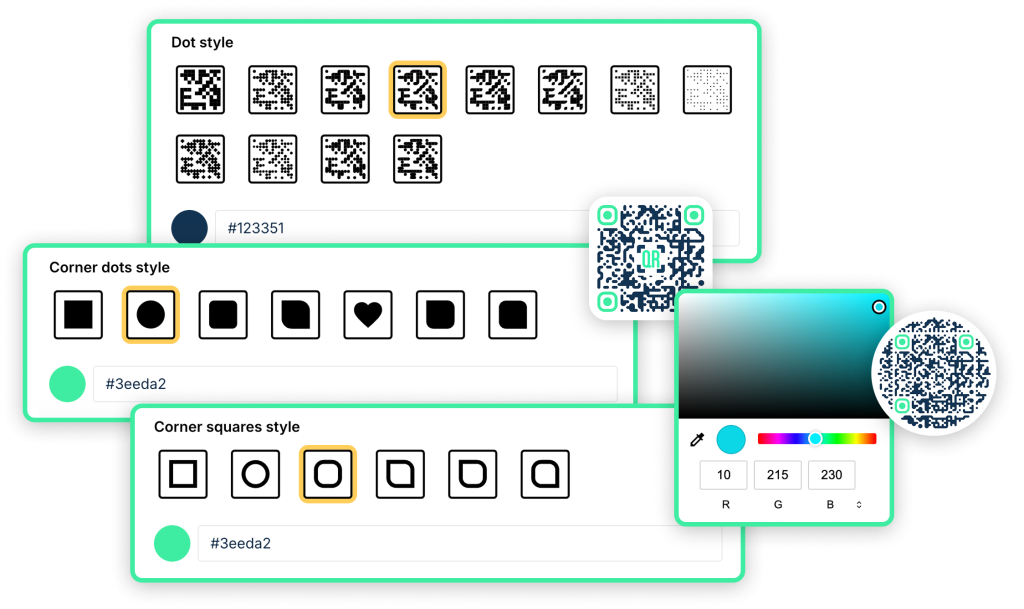
Important: Keep high contrast between the dots and background. Dark dots on a light background is the safest choice. If you use colors, test the code before committing to print.
Step 4: Download in Print-Ready Format
Download your QR code in the right format for printing:
- JPEG — acceptable but not ideal. Compression can soften the edges of QR modules.
- SVG — ideal for business cards. Scales to any size without losing quality. Works perfectly with professional print services.
- PNG — works for most print applications. Download at the highest resolution available.
For business cards, SVG is the best choice because it ensures crisp edges at any print resolution.
Step 5: Add to Your Card Design
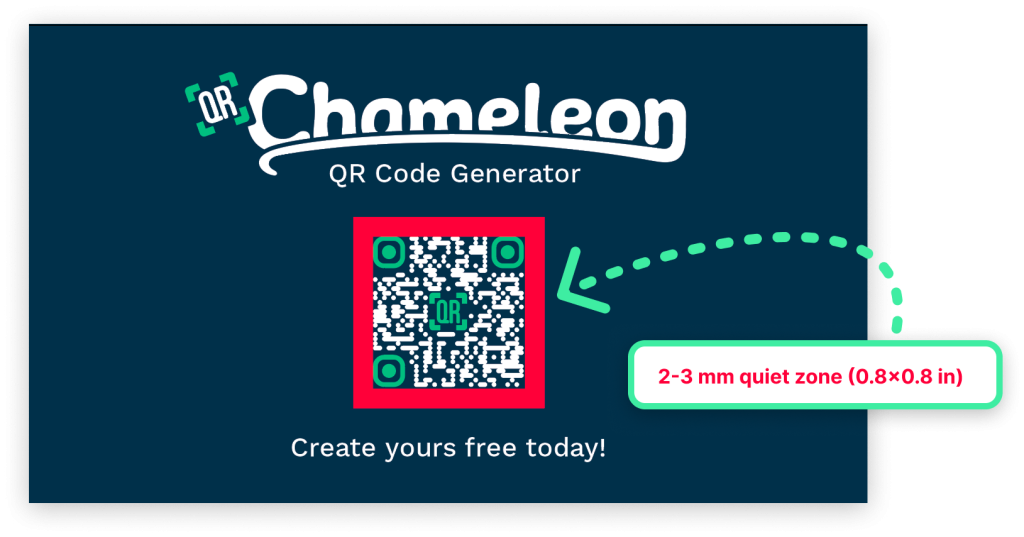
Import the QR code file into your design tool — Canva, Adobe Illustrator, Figma, or whatever your print service provides — and place it on your card.
Leave at least 2-3 mm (0.8×0.8 in) of empty space around the QR code. This “quiet zone” helps scanners identify where the code begins and ends.
Step 6: Test Before You Print
This step saves money and embarrassment. Before sending your cards to the printer:
- Scan with an iPhone — use the built-in camera app
- Scan with an Android phone — use the built-in camera or Google Lens
- Print one test card at actual size and scan it
- Test in different lighting — indoor, outdoor, under fluorescent lights
If the QR code works on screen but fails when printed, the issue is usually size (too small) or contrast (colors too similar).
Static vs. Dynamic QR Codes for Business Cards
This decision matters more than most people realize — especially for something you’re printing on hundreds of cards.
Static QR Codes
The destination is encoded directly into the QR code pattern. Once printed, it can never change. For a vCard, this means your contact info is baked into the code itself.
Works fine when: Your contact information is completely stable, you’re linking to a permanent URL like your LinkedIn profile, and you don’t need scan tracking.
The problem: The average person changes jobs every 2-4 years. With a static QR code, every job change means new cards — and the old ones in people’s drawers now deliver outdated information.
Dynamic QR Codes
With a dynamic QR code, you can change the destination anytime from your dashboard. The printed code stays the same, but where it sends people or the information it stores updates instantly.
Better when: You might change jobs, update your phone number, move, want to track scan activity, or want to A/B test different destinations.
For business cards specifically, dynamic QR codes offer a significant advantage. You print once, update forever. No waste, no reprinting, no outdated contact info floating around in people’s phones.
For a deeper comparison, see our full guide on static vs. dynamic QR codes.
QR Code Design Tips for Business Cards
Size: Bigger Than You Think
The minimum scannable size for a QR code is about 0.4 inches (1 cm) square. For business cards, aim for at least 0.6 to 0.8 inches (1.5 to 2 cm) to ensure reliable scanning. The recommended minimum is 2 x 2 cm (0.8 x 0.8 inches).
If you add a logo or use a complex dot pattern, go even larger. Complexity requires more physical space for reliable reads.
Contrast is Non-Negotiable
QR code scanners (cameras) detect the difference between light and dark areas. Black dots on a white background is the most reliable combination. If you go wild with colors, make sure the contrast ratio is high enough — dark blue on white works, light gray on cream doesn’t.
Logo Placement
If you add a logo to the center of your QR code, keep it small — no more than 30% of the code area. QR codes have built-in error correction that allows them to function even with some obstruction, but push it too far and the code won’t scan.
Don’t Over-Customize
A QR code that looks beautiful but doesn’t scan is worthless. Prioritize function over form. Test every design variation before printing.
Create Your Dynamic Business Card QR code — Free, Fast, and Fully Automatic
Start for free — no credit card required.
Create Your Free Business Card (vCard) QR Code NowWhere to Place the QR Code on Your Business Card
Back of the Card (Most Common)
The front stays clean with your name, title, and essential details. The back features the QR code prominently with plenty of white space. This gives the code maximum real estate and a clean background for reliable scanning.
Front of the Card
Works if your design is minimal. Place the QR code in a corner or along one edge. Make sure it doesn’t compete with your name and essential information for visual attention.
Size Relative to the Card
A QR code that’s too small looks like an afterthought. One that dominates the card feels unbalanced. Aim for 15-25% of the card area on whichever side you place it.
Add a Call-to-Action
Don’t just put a QR code on your card and hope people scan it. Add a short label:
- “Scan to save my contact”
- “Scan to connect”
- “Save my info instantly”
A clear CTA increases scan rates because people know exactly what they’ll get.
FAQs
What is the best QR code type for a business card
A vCard QR code is the best choice for most professionals. It saves your contact information — name, phone, email, company, title, website — directly to the scanner’s phone. No website visit required, no app download needed. One scan and you’re in their contacts. For maximum flexibility, use a dynamic vCard QR code so you can update your details without reprinting.
How do I create a QR code that saves my contact info to someone’s phone?
Use a QR code generator that supports the vCard format. Enter your name, phone number, email, company, job title, and website. The generator creates a QR code that, when scanned, prompts the phone to save your information as a new contact. QR Chameleon offers vCard QR code generation with design customization and scan analytics.
Should I use a static or dynamic QR code on my business card?
Dynamic is almost always the better choice for business cards. With a static code, your information is permanent — if anything changes, you need new cards. A dynamic code lets you update your contact info, track how many people scan your card, and see when and where scans happen.
What size should a QR code be on a business card?
Minimum 0.6 inches (1.5 cm) square, but 0.8 inches (2 cm) is better for reliable scanning. If your QR code includes a logo or uses a complex dot pattern, go larger. Always print a test card and scan it with multiple phones before committing to a full print run.
Can a QR code replace a business card entirely?
It can supplement one, but probably shouldn’t replace it entirely. Physical business cards still matter for first impressions and tactile brand experiences. The best approach is combining both — a well-designed physical card with a QR code linked to a digital business card page. With QR Chameleon’s Pages feature, you create a Business Card page with your photo, contact details, social links, and downloadable files — and the app generates the QR code for you automatically. The physical card makes the introduction; the QR code makes the connection stick.
Do QR codes on business cards actually get scanned?
Yes. Business card QR codes have an average 34% scan rate, which is nearly three times higher than advertising QR codes. Adding a clear call-to-action like u0026quot;Scan to save my contactu0026quot; next to the code increases that rate further.
What information should I include in my vCard QR code?
At minimum: full name, primary phone number, email address, and company name. Optionally add your job title, website URL, physical address, and secondary phone numbers. Don’t include information you don’t want widely shared — remember, anyone who scans the code gets everything encoded in it.
Can I add my photo to a vCard QR code?
It can supplement one, but probably shouldn’t replace it entirely. Physical business cards still matter for first impressions and tactile brand experiences. The best approach is combining both — a well-designed physical card with a QR code linked to a digital business card page. With QR Chameleon’s Pages feature, you create a Business Card page with your photo, contact details, social links, and downloadable files — and the app generates the QR code for you automatically. The physical card makes the introduction; the QR code makes the connection stick.
Ready to create a QR code for your business card? QR Chameleon lets you generate vCard QR codes with styled anyway with logos — plus free scan analytics so you know exactly how your cards perform.