


Getting customers to leave Google reviews is one of the mostly effective ways to grow a local business. The problem isn’t that customers don’t want to help — it’s that leaving a review requires too many steps. Find the business on Google. Click reviews. Log in. Write something. By step three, most people have moved on with their day.
A Google review QR code removes the friction entirely. Customers scan with their phone, tap once, and they’re on your review page ready to write. No searching, no typing your business name, no hunting through Google Maps.
This guide shows you exactly how to create a QR code for Google reviews — from finding your review link to generating a scannable code you can print today.
What Is a Google Review QR Code?
A Google review QR code is a scannable code that links directly to your Google Business Profile review page. When someone scans it, their phone opens your review form immediately — skipping the search step entirely.
The QR code encodes a specific URL that Google provides for every business. This URL takes users straight to the “write a review” prompt, not just your business listing.
Why it matters for local businesses:
- More reviews — Reducing friction means more customers actually follow through
- Better reviews — You’re asking when the experience is fresh, not days later via email
- Higher visibility — More reviews improve your local search ranking
- Social proof — New customers trust businesses with recent, authentic reviews
Step 1: Get Your Google Review Link
Before you can create a QR code, you need the direct link to your Google review page. Here’s how to find it:
Option A: From Google Business Profile Manager
- Go to business.google.com and sign in
- Select your business if you have multiple locations
- Click “Home” in the left menu
- Look for the “Get more reviews” card
- Click “Share review form” — this copies your review link
Option B: From Google Search
- Search for your business name on Google
- Find your business listing on the right side (Knowledge Panel)
- Click “Ask for reviews” (you may need to be signed into the Google account that manages the business)
- Copy the link provided
Option C: Build the Link Manually
If you know your Place ID, you can construct the link yourself:
https://search.google.com/local/writereview?placeid=YOUR_PLACE_IDTo find your Place ID:
- Go to Google’s Place ID Finder
- Search for your business
- Copy the Place ID
- Insert it into the URL above
Test Your Link First
Before creating a QR code, paste the link into a browser and confirm it opens your review page — not your competitor’s, not a generic search, and not an error page. This step saves you from printing hundreds of useless QR codes.
Step 2: Create Your Google Review QR Code
Now that you have your review link, you need to turn it into a QR code.
Using QR Chameleon (Free)
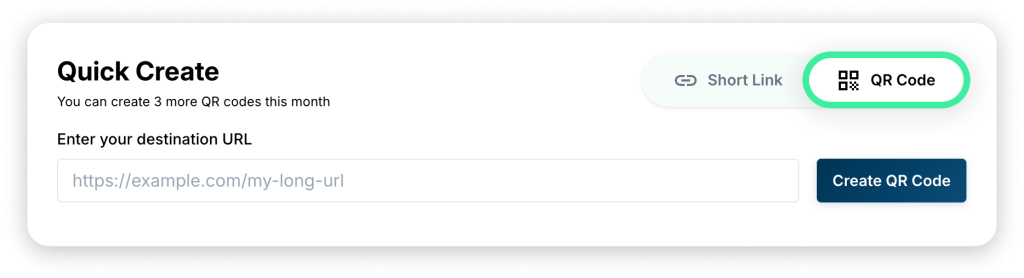
- Use the “Try it Free” widget in the bottom-right corner of this page — select QR Code, paste your Google review link, and click Create QR Code
- Create your free account — takes 10 seconds, no credit card required
- You’ll land directly in the QR code editor — customize colors, patterns, and optionally add your logo
- Download as PNG, JPEG, or SVG
Every QR code you create with QR Chameleon is dynamic by default — meaning you can change the destination URL later without reprinting. If Google ever changes your review link format, you just update it in your dashboard.
Why Dynamic QR Codes Matter for Review Links
Static QR codes encode the URL directly into the pattern. If Google changes how review links work (which has happened before), your printed materials become useless.
Dynamic QR codes encode a short redirect URL instead. The redirect always points to your current review link, which you control. Update it once in your dashboard and every printed code keeps working.
You also get scan analytics — see how many people actually scan your review QR code, when they scan it, and where.
Step 3: Design Your QR Code for Maximum Scans
A plain black-and-white QR code works, but a few design choices can increase scan rates:
Add your brand colors. Match your business colors so the code looks intentional, not like an afterthought. Keep enough contrast between the dots and background for reliable scanning.
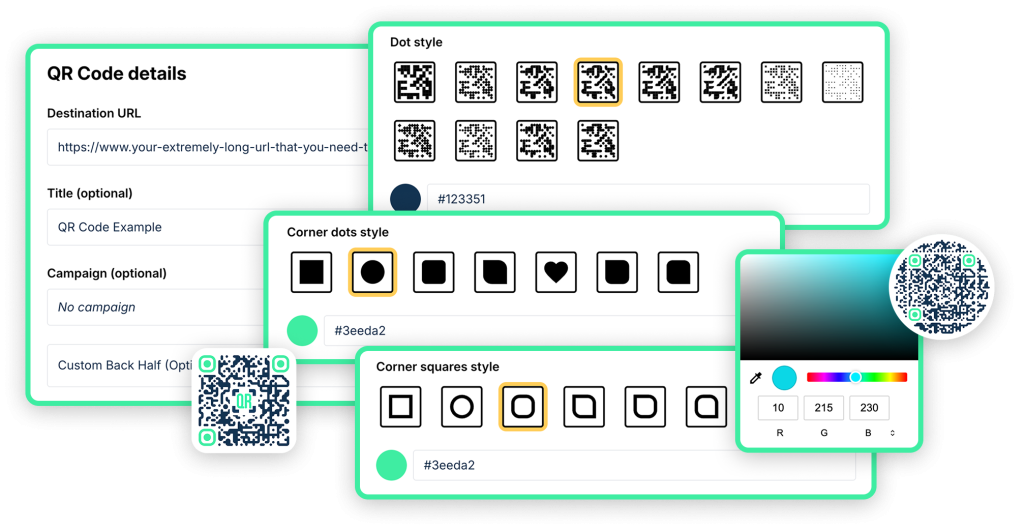
Keep it simple. Heavy customization (complex patterns, large logos) can interfere with scanning. Test any design on multiple phones before printing.
Add a call-to-action. The QR code alone doesn’t tell people what they’ll get. Add text like:
- “Scan to leave a review”
- “How’d we do? Scan to tell us”
- “Scan for a quick review”
Size it appropriately. For table tents and receipts (arm’s length), 1-1.5 inches is fine. For wall signage (a few feet away), go 3-4 inches minimum.
Where to Put Your Google Review QR Code
Placement matters as much as the code itself. The best locations catch customers when they’re happiest — right after a good experience, not days later.
Restaurants and Cafes
- Table tents near the check presenter
- Printed on receipts
- Counter signage near the register
- On the back of business cards
- Menu inserts or “Thank You” cards
Retail Stores
- At the checkout counter
- On shopping bags or receipt paper
- Product packaging inserts
- Exit signage (“Thanks for visiting!”)
Service Businesses
- Email signatures with a small QR image
- Invoice footers
- Appointment reminder cards
- Waiting room signage
- On the back of business cards handed to clients
Professional Services
- End-of-project thank you cards
- Proposal or contract cover pages
- Office lobby signage
- Client gift packaging
Trade Shows and Events
- Booth signage
- Handout materials
- Badge holders or lanyards
The principle: put the QR code where customers can scan it while the positive experience is still fresh.
Create Your Free Google Business Review QR Code
Start for free, start tracking — no credit card required.
Create Your Free QR Code NowBest Practices for Getting More Reviews
Having a QR code is step one. Getting people to actually scan it requires a bit of strategy.
Ask at the Right Moment
Timing matters more than the ask itself. The best time to request a review is immediately after a positive interaction — when the customer has just expressed satisfaction, received their order, or completed a successful transaction.
Bad timing: Asking before the customer has experienced your product or service.
Make the Ask Personal
“Could you leave us a review?” works better than “Scan for reviews.” Even better: “It would really help us out if you could leave a quick review.” People respond to genuine requests.
Train Your Team
If you have staff, make sure they know:
- Where the QR codes are located
- When to mention them (after positive interactions)
- How to make the ask feel natural, not pushy
Don’t Incentivize Reviews
Google’s guidelines prohibit offering discounts, freebies, or other incentives in exchange for reviews. You can ask for reviews — you just can’t pay for them. Violations can get your reviews removed or your listing penalized.
Respond to Reviews
Responding to reviews (especially negative ones) shows future customers you care. It also encourages more people to leave reviews because they see you’re paying attention.
Tracking Your Google Review QR Code Performance
If you created your QR code with a platform that includes analytics (like QR Chameleon), you can track:
- Total scans — How many people scanned the code
- Scans over time — Did a new table tent placement increase scans?
- Device breakdown — Mostly iPhone or Android?
- Location data — Useful if you have multiple locations with different codes
This data helps you understand which placements work best. If the code on your receipts gets 10x more scans than the one in your window, you know where to focus.
Compare scan data to your actual review count in Google Business Profile. A high scan rate with few new reviews might mean the review process itself has friction (slow loading, login issues, etc.).
Common Mistakes to Avoid
Linking to the wrong page. Double-check that your link goes to the review form, not just your business listing. Test it on multiple devices.
Printing too small. A QR code that requires customers to hold their phone 2 inches away won’t get scanned. Size for the expected scanning distance.
Forgetting the call-to-action. A QR code without context looks like a random barcode. Tell people what they’ll get when they scan.
Using a static QR code. If Google changes review link formats (they have before), static codes break. Dynamic codes let you update the destination without reprinting.
Placing codes where customers are unhappy. A QR code at the complaint desk or returns counter will generate the reviews you don’t want.
Not testing before printing. Print one copy, scan it with multiple phones, confirm it works, then print the rest.
Frequently Asked Questions
How do I create a QR code for Google reviews?
First, get your Google review link from your Google Business Profile (go to business.google.com, select your business, and click u0026quot;Share review formu0026quot;). Then use a QR code generator like QR Chameleon to convert that link into a scannable code. Download the code as PNG or SVG and print it.
Can I make a free Google review QR code?
Yes. QR Chameleon’s free plan includes 2 QR codes per month with full scan analytics. No credit card required.
Where should I put my Google review QR code?
Place it where customers are happiest — near the point of sale, on receipts, on thank-you cards, or anywhere they’ve just had a positive experience. Avoid locations associated with complaints or returns.
Do Google review QR codes actually work?
Yes — when implemented well. Businesses that make it easy to leave reviews get more reviews. The key is reducing friction: one scan beats asking customers to search for your business manually. Track your scan analytics to see what’s working.
Can I customize my Google review QR code with my logo?
Yes. Most QR code generators let you add colors, patterns, and logos. Just make sure to test the final design — too much customization can interfere with scanning. QR Chameleon’s paid plans include full customization with logo upload.
What’s the difference between a static and dynamic Google review QR code?
A static QR code encodes your review URL directly in the pattern — if Google changes the link format, the code breaks. A dynamic QR code encodes a redirect URL you control, so you can update the destination anytime without reprinting. Dynamic codes also include scan analytics.
How do I get my Google review link?
Sign into business.google.com, select your business, and look for u0026quot;Get more reviewsu0026quot; on the home screen. Click u0026quot;Share review formu0026quot; to copy your direct review link.
Can I track how many people scan my Google review QR code?
Yes — if you use a dynamic QR code with analytics. QR Chameleon shows you total scans, scans over time, device types, and geographic data. This helps you understand which placements drive the most engagement.
Start Getting More Reviews
A Google review QR code is one of the simplest tools for growing your local business. Create one, print it, place it where customers are happy, and watch your reviews grow.
No credit card required. Takes about 2 minutes.