


A Venmo QR code is a unique payment shortcut every Venmo account gets — scan it with a phone camera and the Venmo app opens to your profile, ready for someone to send you money. No spelling out usernames, no searching, no “is that an underscore or a dash?“
Picture the farmers market: a customer wants to pay for your handmade candles, you say “just Venmo me,” and then spend the next two minutes spelling out your username while they scroll through 14 people with the same first name. A QR code on your booth skips all of that.
However, the problem is that Venmo makes it surprisingly annoying to find, save, and print your QR code. It’s buried in the app, there’s no obvious “download” button, and if you want to print it for a booth, tip jar, or counter sign, you’re mostly on your own.
This guide walks you through every method — finding your Venmo QR code in the app, getting it on your computer for printing, the best ways to print it, and customizing it with your brand.
Make your Free Venmo QR code
Paste your Venmo profile link and create your QR code which comes with scanning and tracking analytics. All free.
Update your QR Code anytime without reprinting.
What Is a Venmo QR Code?
Every Venmo account has a unique QR code built into the app. When someone scans it with their phone camera or the Venmo app, it opens your Venmo profile directly — ready for them to send a payment. No searching required.
Venmo QR codes are especially useful for:
- Small businesses and side hustles — farmers markets, craft fairs, food trucks, pop-up shops
- Freelancers and service providers — photographers, tutors, dog walkers, handymen
- Tip jars — musicians, baristas, delivery drivers
- Events — splitting costs for group dinners, bachelor parties, team outings
- Fundraising — school clubs, community events, charity drives
How to Find Your Venmo QR Code in the App
Fortunately, your QR code is already in the Venmo app — you just need to know where to look.
On iPhone or Android
- Open the Venmo app
- Tap the Me tab (bottom right)
- Tap the QR code icon next to your profile name (it looks like a small square grid)
- Your personal Venmo QR code appears
From there, you can show it directly to someone to scan, or share it via text, email, or social media using the share button.
For Business Profiles
If you have a Venmo Business Profile, the process is similar:
- Open the Venmo app and switch to your Business Profile
- Tap the QR code icon on your business profile page
- Your business QR code appears — this one links to your business profile, not your personal account
In general, business QR codes are better for public-facing use because they show your business name, not your personal name, when scanned.
How to Get Your Venmo QR Code on Computer (Desktop)
Venmo doesn’t have a desktop app, which means there’s no obvious way to get your QR code on a computer. The workaround is straightforward — pull your profile URL from venmo.com in a browser, then generate a print-quality QR code from it.
- Open venmo.com in a browser and log in
- Go to your profile page
- Your Venmo profile URL will be something like
venmo.com/u/YourUsername - Copy that URL
- Paste your Venmo URL into the Make your Venmo QR code box at the top of this page and click Create my Venmo QR code. Create a free account in seconds and you’ll land in the editor with your branded QR ready
- Download as SVG (for print) or PNG (for digital)
This gives you a print-quality QR code at any size — far better than a phone screenshot. Plus, if you use a dynamic QR code, you get scan analytics and the ability to update the destination later.
How to Print Your Venmo QR Code
Now, this is where most people get stuck. Venmo doesn’t have a “download as image” button — you need a workaround. Here are the best methods.
Method 1: Screenshot and Print
The simplest method, but lowest quality:
- Open your Venmo QR code in the app (Me → QR icon)
- Take a screenshot
- Crop the image to just the QR code
- Print it or insert it into a design template
Downsides: The resolution is limited to your phone screen, which means it can look blurry when printed larger than about 2 inches. That’s fine for a small sign or tip jar card, but not great for a poster or banner.
Method 2: Custom Print-Ready QR Code (Recommended)
For the best results — especially for businesses — consider creating your own QR code using your Venmo profile URL. This gives you full control over the design, resolution, and tracking.
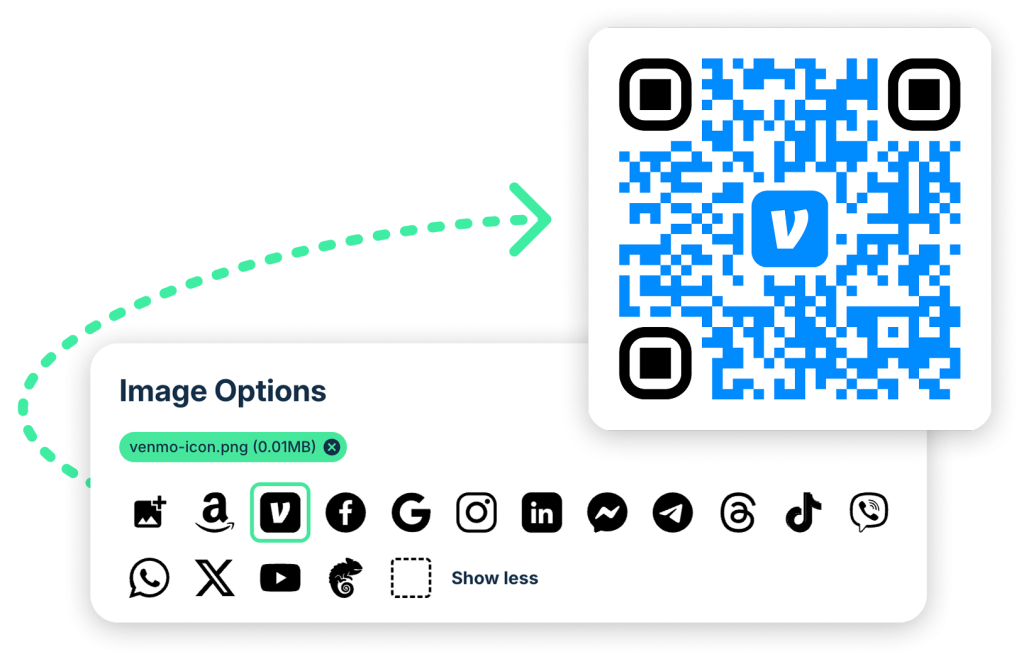
- Find your Venmo profile URL:
venmo.com/u/YourUsername - Paste your Venmo URL into the Make your Venmo QR code box at the top of this page and click Create my Venmo QR code
- Create your free account — takes 10 seconds, no credit card required. You’ll land directly in the QR code editor
- Customize the design — add your brand colors, a logo, or a Venmo-blue theme
- Download as SVG for crisp printing at any size
Why this is better than Venmo’s built-in code:
| Feature | Venmo’s Built-in QR | Custom QR (like QR Chameleon) |
|---|---|---|
| Resolution | Screen-quality only | Print-quality SVG, any size |
| Customization | None | Colors, logos, dot patterns |
| Scan tracking | None | Full analytics (scans, devices, locations) |
| Editable destination | No | Yes — update URL without reprinting |
| Works if username changes | No — code breaks | Yes — just update the redirect |
Where to Display Your Venmo QR Code
A Venmo QR code only works if people see it at the right moment — when they’re ready to pay. Here’s where to put it.
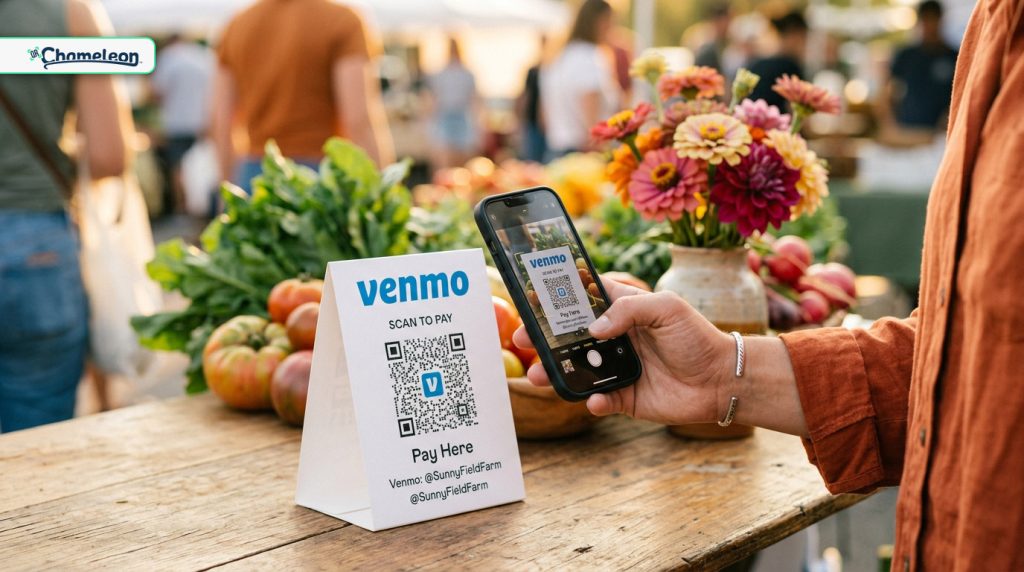
Farmers Markets and Craft Fairs
Print a table sign or tent card with your code and a clear label: “Scan to pay with Venmo.” Then place it next to your cash box or card reader. Many market customers prefer Venmo over cash or card — especially younger shoppers.
Tip Jars
Of course, nobody carries cash anymore. So a QR code on your tip jar — or replacing the jar entirely — lets customers tip digitally. In particular, this works for musicians, baristas, food truck staff, and anyone who earns tips. Print the code on a small stand or card that says “Tips appreciated — scan to Venmo.”
Invoices and Receipts
Similarly, freelancers and service providers can add a scannable payment code to invoices. As a result, clients scan and pay in seconds instead of hunting for your payment info. Simply add it alongside your other payment methods.
Event Signage
Collecting money for a group gift, charity event, or team outing? Print a poster with the code and the amount or purpose. “Scan to contribute to Sarah’s going-away gift — suggested $20.” Pair it with a WiFi QR code at events where cell service is spotty. For group gifts where contributors also want to chip in on a specific item, add a separate QR code for an Amazon wishlist so everyone can see what’s already been claimed.
Business Cards
If you’re a freelancer or sole proprietor, adding a payment QR code to the back of your business card gives clients an instant payment option. First, they scan the front for your contact info, then flip it over and scan the back to pay you.
Social Media
Furthermore, you can share your payment code as an image in Instagram stories, Facebook posts, or Twitter. This approach works especially well for fundraisers, small business promotions, and creators accepting support. For instance, for a more permanent solution, add your Venmo link to a link-in-bio page alongside your other links.
Create a Print-Ready Venmo QR Code
High-resolution, customizable, with scan tracking. Free to start.
Create Your Free Venmo QR CodePrinting Tips for Venmo QR Codes
Obviously, a QR code that won’t scan is worse than no QR code — it makes you look unprofessional and wastes the customer’s time.
Size Guidelines
- Table tent or counter card (arm’s length): minimum 1.5 inches square
- Poster or wall sign (3–6 feet away): minimum 3 inches square
- Banner or large display (10+ feet): 6 inches or larger
Therefore, use SVG format for printing — it scales to any size without losing quality. PNG works for digital sharing and small prints.
Design Best Practices
- High contrast: Dark code on a light background. Venmo’s blue on white works perfectly.
- Quiet zone: Leave empty space around the code — at least the width of 4 modules (the small squares). Crowding the code with text or borders can interfere with scanning.
- Label it: Add text like “Pay with Venmo” or “Scan to pay” so people know what the code does.
- Test before mass printing: Print one copy, scan it with both iPhone and Android. If it works, print the rest.
Laminate for Durability
Additionally, if your QR code will be on a table or counter where it’ll get wet, dirty, or handled frequently, laminate it. After all, a smudged or damaged QR code won’t scan. Instead, matte lamination reduces glare, which helps in bright environments.
Venmo QR Code vs. Venmo Payment Link
Venmo also lets you share a direct payment link (venmo.com/u/YourUsername). When should you use the QR code versus the link?
| QR Code | Payment Link | |
|---|---|---|
| Best for | In-person, print, signage | Text, email, social media |
| Requires | Camera to scan | Clicking a link |
| Works on print | Yes | No — can’t click paper |
| Trackable | Yes (with dynamic QR) | No |
Ideally, use both. The QR code goes on anything physical — signs, cards, invoices, tip jars. The link goes in anything digital — texts, emails, bios. For the best of both worlds, create a short link from your Venmo URL and use it everywhere — digital and print.
Security Tips for Venmo QR Codes
Overall, Venmo QR codes are generally safe, but it’s still worth knowing the risks — especially if you’re a business displaying one publicly. To learn more about QR code fraud, check out our guide on QR code scams.
When Scanning as a Customer
- Verify the profile name matches the business or person you intend to pay
- Check for sticker overlays — make sure the QR code hasn’t been tampered with
- Never scan a Venmo QR code from an unsolicited email, letter, or package
For Businesses Displaying
- Print directly on materials rather than using stickers when possible
- Check your displayed codes regularly for signs of tampering
- Use a dynamic QR code so you can monitor scan analytics and spot unusual activity
- Add your Venmo username as text next to the code so customers can verify manually

Ready to create your own QR codes?
Start for free — no credit card required.
Create Your Free Account NowTroubleshooting Common Venmo QR Code Issues
“The QR code won’t scan”
- Make sure there’s enough contrast between the code and background
- Check that the code isn’t too small — minimum 1.5 inches for close-range scanning
- Clean any smudges or damage on the printed code
- Avoid glossy surfaces that cause glare under bright lights
“It opens Venmo but shows the wrong profile”
- Double-check the URL you used to generate the code — make sure it’s your profile, not someone else’s
- If you changed your Venmo username, the old URL may no longer work. With a dynamic QR code, just update the destination — no reprinting needed
“I can’t find the QR code in the Venmo app”
- Make sure your Venmo app is updated to the latest version
- The QR code icon is on the Me tab, near your profile name — it’s small and easy to miss
- If you still can’t find it, use the web method: log into venmo.com, copy your profile URL, and generate a QR code from it
Venmo QR Code FAQs
How do I get my Venmo QR code?
Open the Venmo app, tap the Me tab (bottom right), then tap the QR code icon next to your profile name. Your personal QR code will appear. You can show it directly for someone to scan, or share it via text, email, or social media.
What’s the best way to print my Venmo QR code?
The easiest method: screenshot your QR code from the Venmo app, crop it, and print. For higher quality, copy your Venmo profile URL (venmo.com/u/YourUsername), paste it into a QR code generator like QR Chameleon, and download as SVG for crisp printing at any size.
Can I get my Venmo QR code on a computer?
Venmo doesn’t have a desktop app with QR codes. Instead, log into venmo.com in a browser, go to your profile, and copy your profile URL. Then use a QR code generator to create a print-quality code from that URL.
Is it possible to customize my Venmo QR code?
Venmo’s built-in QR code can’t be customized. But if you create your own using your Venmo profile URL and a generator like QR Chameleon, you can change colors, add a logo, pick dot patterns, and download in print-ready formats.
Does scanning a Venmo QR code automatically send money?
No. Scanning a Venmo QR code opens the person’s profile in the Venmo app. You still have to manually enter the amount and tap Pay. No money is sent without your explicit confirmation.
What if I change my Venmo username?
If you created a static QR code with your old username URL, it will stop working. If you used a dynamic QR code from a platform like QR Chameleon, you can update the destination URL to your new username without reprinting the code.
Is it safe to display my Venmo QR code publicly?
Generally yes. Scanning the code only opens your Venmo profile — it doesn’t give anyone access to your account or financial information. However, check your displayed codes regularly for tampering, and learn how to spot QR code scams in our guide on the blog.
Can I use a Venmo QR code for my business?
Yes. If you have a Venmo Business Profile, use that QR code so customers see your business name when they scan. For the best experience, create a custom QR code from your business profile URL — you get print-quality downloads, branding options, and scan analytics.
Need a print-ready Venmo QR code with custom branding and scan tracking? QR Chameleon creates dynamic QR codes from any URL — including your Venmo profile. Download as SVG, print at any size, and see exactly how many people scan it.