

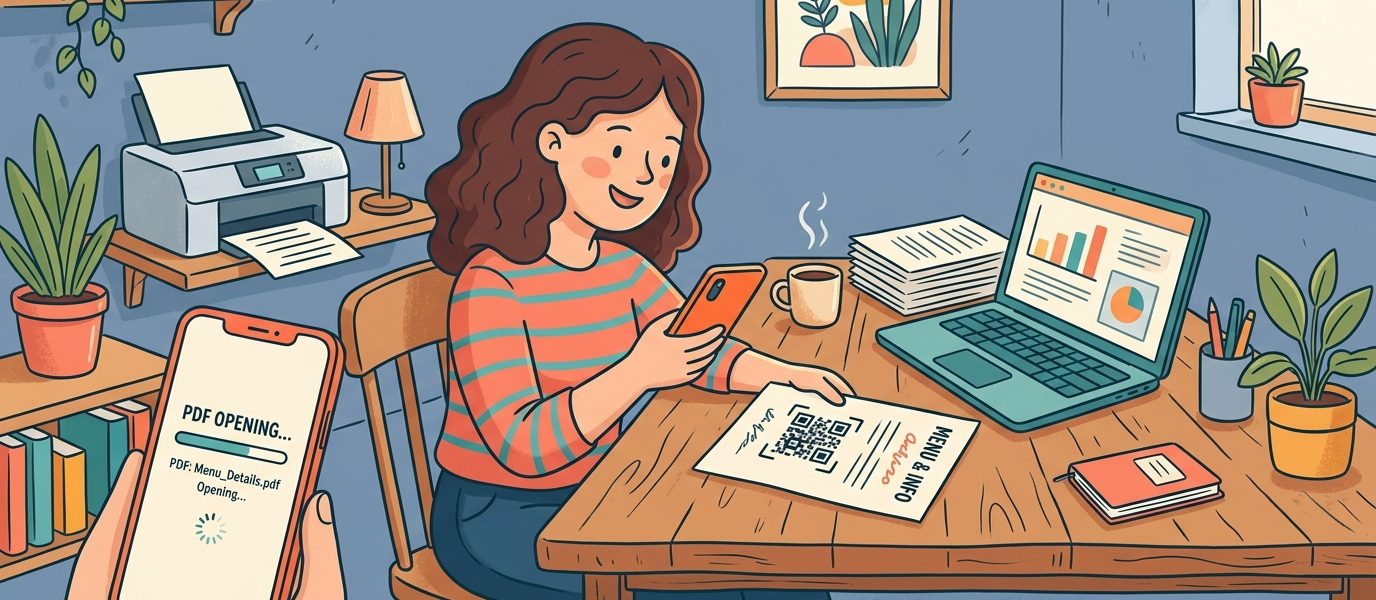
A QR code for a PDF lets anyone access your document with a single scan. No email attachments that get buried in inboxes. Forget file-sharing apps that require logins. No URLs so long they break across two lines in a text message. Just scan, and the PDF opens on their phone.
This is especially useful when you need to share documents in physical spaces — a restaurant menu on a table tent, a product manual on packaging, a real estate flyer on a yard sign, or an event program on a poster. In each case, the QR code bridges the gap between the physical world and a digital document.
This guide walks you through exactly how to create a QR code for a PDF, from hosting your file to generating a print-ready code you can use anywhere.
How QR Codes for PDFs Work
Before diving into the steps, it helps to understand what’s actually happening behind the scenes. A QR code can’t store a PDF file directly — the file is far too large. Instead, the QR code stores a URL that links to your PDF hosted online.
When someone scans the code, their phone opens the URL, which either displays the PDF in their browser or downloads it automatically. As a result, the process has two parts:
- Host your PDF somewhere online (so it has a URL)
- Create a QR code from that URL
If you use a dynamic QR code, you can also change the linked PDF later without reprinting the code — and track how many people scan it.
Step 1: Host Your PDF Online
First, your PDF needs a publicly accessible URL. There are several free options, depending on your situation.
Google Drive (Free, Simple)
- Upload your PDF to Google Drive
- Right-click the file and select “Share”
- Change access to “Anyone with the link”
- Copy the sharing link
Pro tip: Google Drive sharing links open a preview page, not the PDF directly. To link to the raw PDF, change /view at the end of the URL to /preview for a cleaner viewing experience.
Dropbox (Free Tier Available)
- Upload your PDF to Dropbox
- Click “Share” and copy the link
- Change
dl=0at the end of the URL todl=1for a direct download link
Your Own Website
If you have a website, simply upload the PDF to your server and use the direct URL (e.g., yoursite.com/files/menu.pdf). This gives you the most control and the fastest load times.
Other Options
Additionally, you can host PDFs on platforms like OneDrive, iCloud (with sharing enabled), or dedicated file hosting services. The key requirement is that the PDF has a publicly accessible URL that doesn’t require a login to view.
Step 2: Create Your QR Code
Once you have your PDF URL, creating the QR code is straightforward:
- Use the “Try it Free” widget in the bottom-right corner of this page — select QR Code, paste your PDF URL, and click Create QR Code
- Create your free account — takes 10 seconds, no credit card required. You’ll land directly in the QR code editor
- Customize the design — match your brand colors, choose a dot pattern, and optionally add your logo
- Download as SVG for print (scales to any size) or PNG for digital use
Every QR code created with QR Chameleon is dynamic by default. That means you can swap the PDF later without reprinting, and you get scan analytics on every code — including the free plan.
Step 3: Test Before Printing
This step saves you from printing hundreds of codes that don’t work. Before committing to a print run:
- Scan with an iPhone — confirm the PDF opens in the browser
- Scan with an Android phone — some Android browsers handle PDFs differently
- Check the load time — large PDFs (10MB+) can be slow on cellular connections. Consider compressing the file if needed
- Print one test copy at actual size and scan it from the expected distance
If the PDF opens on a Google Drive preview page instead of displaying directly, that’s still functional — but consider using the /preview URL variant for a cleaner experience.
Create a QR Code for Your PDF in Seconds
Dynamic, customizable, with scan tracking. Free to start.
Create Your Free PDF QR CodeWhy Use a Dynamic QR Code for PDFs?
PDFs change more often than most people expect. Menus get updated. Product specs get revised. Manuals get new safety information. Price lists change quarterly. If you use a static QR code, every PDF update means reprinting every code.
A dynamic QR code solves this completely. Here’s the comparison:
| Feature | Static QR Code | Dynamic QR Code |
|---|---|---|
| PDF updates | Must reprint the code | Just update the URL in your dashboard |
| Scan tracking | None | Full analytics (scans, devices, locations) |
| Code pattern | Complex (long URL encoded) | Clean and simple (short redirect URL) |
| Multiple versions | Need separate codes | Same code, swap the file anytime |
For example, a restaurant with a QR code menu can update prices, add seasonal items, or swap the entire PDF — all without touching the printed table tents. Similarly, a real estate agent can update a property flyer PDF when the price drops, keeping the same QR code on the yard sign.
Where to Use QR Codes for PDFs
A PDF QR code is useful anywhere you need to share a document without handing someone a physical copy or sending an email. Here are the most common use cases.
Restaurant Menus
The most widespread use case since 2020. A QR code on a table tent links to your full menu PDF. Unlike a printed menu, you can update prices, add specials, and remove sold-out items instantly. For a complete guide, see our post on QR codes for restaurants.
Product Manuals and Guides
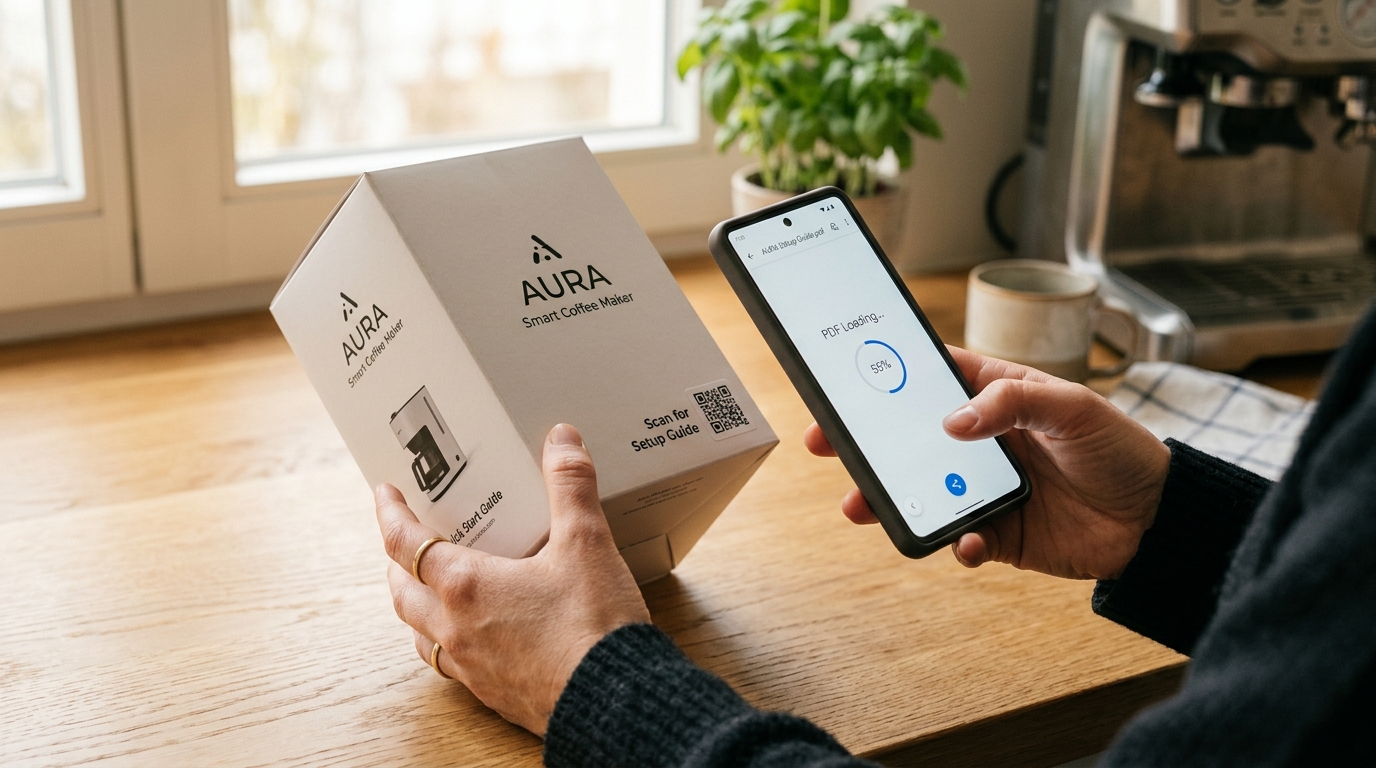
Print a QR code on product packaging that links to the full user manual, setup guide, or safety documentation. This saves printing costs, reduces packaging size, and lets you update the manual without recalling products.
Real Estate Flyers and Brochures
Agents can link a QR code on a yard sign or flyer to a detailed property PDF with photos, floor plans, and pricing. When the listing details change, update the PDF — the code keeps working. Learn more in our real estate QR code guide.
Event Programs and Schedules
Instead of printing 500 programs for a conference or wedding, print a QR code on a simple card that links to the full program PDF. Last-minute schedule changes? Update the file and everyone has the latest version. For weddings and baby showers, pair the program code with a separate QR code for an Amazon wishlist so guests can browse and claim gifts right from the event.
Business Cards and Resumes
Add a QR code to your business card that links to your full resume, portfolio PDF, or company capabilities document. It turns a 3.5-by-2-inch card into a gateway to unlimited detail.
Education and Training
Teachers can link QR codes on classroom posters to assignment sheets, study guides, or reading materials. Training departments can put codes on equipment that link to standard operating procedures. In both cases, the documents stay current without reprinting.
Legal and Compliance Documents
Post QR codes in workplaces that link to safety data sheets, compliance policies, or regulatory documents. Consequently, when regulations change, you update the PDF and every posted code automatically serves the latest version.
Tips for the Best Experience
Keep Your PDF Small
Large PDFs load slowly on mobile, especially on cellular connections. Aim for under 5MB when possible. Most PDF editors (including free ones like Smallpdf or Adobe’s online compressor) can reduce file size without noticeable quality loss.
Make the PDF Mobile-Friendly
Since most people will scan QR codes with their phone, your PDF should be readable on a small screen. This means using large enough text (14pt minimum), avoiding multi-column layouts when possible, and keeping the page count manageable.
Consider a Landing Page Instead
For some use cases, a mobile-optimized web page is better than a PDF. For instance, QR Chameleon’s Pages feature lets you create landing pages with text, images, links, and contact info — all formatted perfectly for mobile. However, if your content requires precise formatting (legal documents, architectural plans, detailed spec sheets), a PDF is still the right choice.
Label Your QR Code
Always add text next to the code so people know what they’ll get. “Scan for full menu,” “Scan for product manual,” or “Scan for event schedule” increases scan rates significantly compared to an unlabeled code.
Common Mistakes to Avoid
- Linking to a login-protected file — if your Google Drive, Dropbox, or OneDrive file requires sign-in to view, the QR code is useless for anyone who doesn’t have access. Always set sharing to “Anyone with the link”
- Using a static QR code for a document that changes — if there’s any chance you’ll update the PDF, use a dynamic code. The reprint cost of a broken static code far exceeds the cost of a dynamic QR code platform
- Huge file sizes — a 50MB PDF with high-res images will frustrate mobile users. Compress before sharing
- Not testing on mobile — some PDFs render perfectly on desktop but are unreadable on phone screens. Always test the full scan-to-view experience on a real phone
- Forgetting to update the link — if you host a new version of the PDF at a different URL, remember to update the QR code destination in your dashboard. With a dynamic code, this takes seconds

Ready to create your own QR codes?
Start for free — no credit card required.
Create Your Free Account NowPDF QR Code FAQs
Can a QR code open a PDF file?
Yes. The QR code links to a URL where the PDF is hosted online (Google Drive, Dropbox, your website, etc.). When someone scans the code, the PDF opens in their phone’s browser. The QR code stores the URL, not the file itself.
How do I create a QR code for a PDF for free?
Upload your PDF to a free hosting service like Google Drive (set sharing to ‘Anyone with the link’). Then copy the URL and paste it into a QR code generator like QR Chameleon. The free plan includes 2 QR codes per month with scan analytics.
Can I update the PDF without changing the QR code?
Yes, if you use a dynamic QR code. You can either replace the hosted file at the same URL, or update the QR code’s destination to point to a new file. Either way, the printed code stays the same. Static QR codes cannot be updated after creation.
What’s the best way to host a PDF for a QR code?
Google Drive is the easiest free option. Upload the file, set sharing to ‘Anyone with the link,’ and copy the URL. For faster loading and more control, host the PDF on your own website. Avoid hosting options that require a login to view.
How large can the PDF be?
There is no hard limit from the QR code side since the code only stores a URL. However, large PDFs (over 10MB) load slowly on mobile connections. Aim for under 5MB for the best user experience. Use a PDF compressor to reduce file size if needed.
Will the QR code work if I change the PDF?
It depends on how you update it. If you replace the file at the same URL (like overwriting a file on Google Drive), the QR code keeps working. If the new PDF has a different URL, you will need to update the destination in your QR code dashboard. With a dynamic code, this takes seconds.
Can I track how many people scan my PDF QR code?
Yes, if you use a dynamic QR code. QR Chameleon shows total scans, device types, geographic locations, and time of day. This helps you understand which placements drive the most engagement with your document.
Should I use a QR code or just email the PDF?
Use both for different situations. Email works for targeted sharing with specific people. QR codes work for broad access in physical spaces like signage, packaging, table tents, and printed materials where you can’t send an email. A QR code also lets you track engagement, which email attachments don’t.
Need to share a PDF with a single scan? QR Chameleon creates dynamic QR codes that link to any document — with custom designs, scan analytics, and the ability to swap the file anytime. Start free, no credit card required.