

You’ve got a link. It could be your Instagram, your menu, your portfolio, your YouTube channel, your company’s landing page, or the Google Form you built last night. Whatever it is, you want people to reach it without typing anything, without searching, and without the link going to the wrong place.
That’s the whole job of a QR code. A small square pattern that replaces “here’s the URL, good luck typing it” with “point your camera here.”
The problem is that every blog post on making a QR code tells you the same thing — paste your URL into a generator, download the PNG, done. That’s technically true, but it skips the decisions that separate a QR code that actually gets scanned from one that ends up stuck to a sign nobody uses.
This guide covers all of it: how to make a QR code for a link in the fastest way possible, how to do it better than the fast way, what to customize and why, the mistakes that kill scan rates, and exactly which code to make for which situation. If you just want to make one right now, our free Link QR Code Generator opens with a URL field and customization options ready to go.
The Short Answer First
If all you need is the three-step version and you’ll figure out the rest yourself:
- Copy the link you want the QR code to point to.
- Paste it into a QR code generator. Hit Create.
- Download the code as PNG or SVG and use it wherever you need.
That’s it. Every QR code generator works essentially the same way. You paste a URL, the generator encodes it into a black-and-white pattern, and your phone’s camera decodes the pattern back to the URL when someone scans it.
The rest of this guide is about doing it well — because most people who follow the three-step version end up with a code that fails to scan, can’t be updated, doesn’t get tracked, or just looks generic enough that nobody bothers scanning it in the first place.
What a QR Code Actually Is
A QR code (short for “Quick Response code”) is a two-dimensional barcode that can store much more information than a traditional barcode. In practical terms, when you make a QR code for a link, the link itself is encoded into the pattern — your phone camera reads the pattern, decodes it back into the URL, and opens it in your browser.
For a full breakdown of the technology, see the explainer on how QR codes work. For creating one, you don’t need to understand the engineering — you just need to know that the QR code is your URL, compressed into a scannable image.
Two things matter here:
- The code is just a pointer. It doesn’t store the website, the video, or the document — it stores the URL that leads to them. If the URL breaks, the QR code breaks.
- The code never changes once printed. The pattern of squares is locked in at creation. This is why there’s an important difference between static codes (which encode the URL directly) and dynamic codes (which encode a trackable short link that can be redirected anywhere later).
More on that distinction in a bit.
How to Make a QR Code for a Link: Step-by-Step
Here’s the detailed walkthrough. Every decision you’ll make along the way, explained.
Step 1: Decide What the Link Should Point To
Before you generate anything, make sure your destination URL is exactly what you want it to be — and that it’s stable.
For existing web pages — just copy the URL from your browser’s address bar. Make sure it’s the permanent URL (not a session-specific one that expires).
For specific content — if you want the QR code to open a particular YouTube video, Instagram profile, Google Form, PDF, or product page, go to that content and copy its share URL. Don’t guess at what the URL might be; always copy it directly.
For UTM-tracked campaigns — if you want to track where QR scans come from, append UTM parameters to the URL before generating the code. For example: `https://yoursite.com/promo?utm_source=print&utm_medium=qr&utm_campaign=spring2026`.
If the page doesn’t exist yet — build the page first. Creating a QR code that points to a broken URL wastes effort. Either make the page first, or use a dynamic QR code so you can update the destination after you’ve built the page.
Step 2: Pick a QR Code Generator
Every generator does the same core job, but the choice matters based on what you need:
- Static-only generators (like QRCode Monkey, many free tools): Encode your URL directly into the code. Free, simple, forever. The tradeoff is that you can’t change the destination later and you get no scan analytics.
- Dynamic generators (like QR Chameleon, Bitly, QR Code Generator): Encode a short tracking URL that redirects to your real destination. You can change the destination anytime, see how many people scanned, where they scanned from, what device they used. Requires an account; free plans are available.
For most real-world use cases — marketing materials, business cards, events, anything that might need to change — pick a dynamic generator. The future-proofing alone is worth the 30 seconds it takes to sign up.
Step 3: Paste the URL and Generate
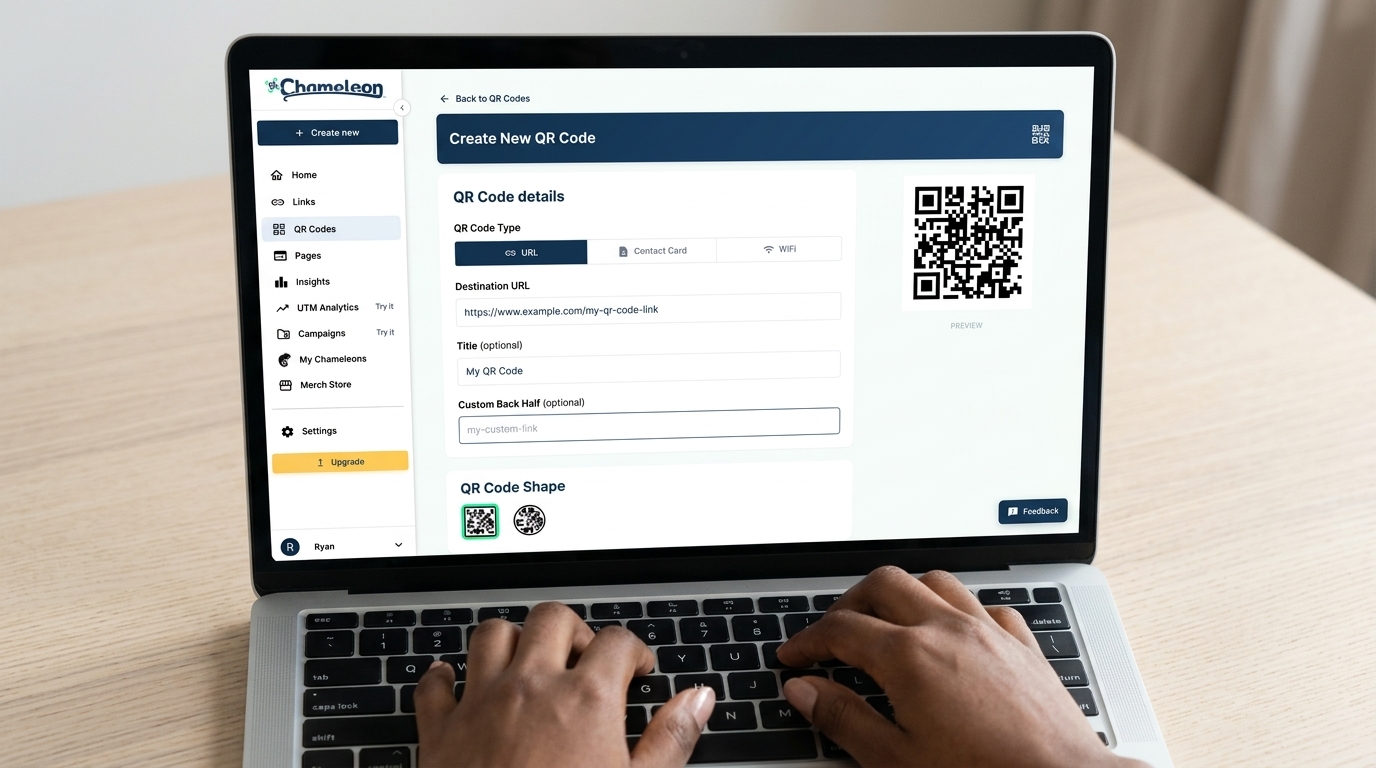
Open the generator. Paste the URL into the destination field. Click Create QR Code.
For QR Chameleon specifically: open our free Link QR Code Generator, paste your URL, and pick a color and dot pattern. Click Save my QR code free — signup takes 10 seconds, no credit card, and your code lands in the dashboard ready to download or update later.
Step 4: Customize Your QR Code
This is where most people stop too early. A plain black-and-white QR code works — but a customized one gets scanned more often because it signals intent and matches your brand.
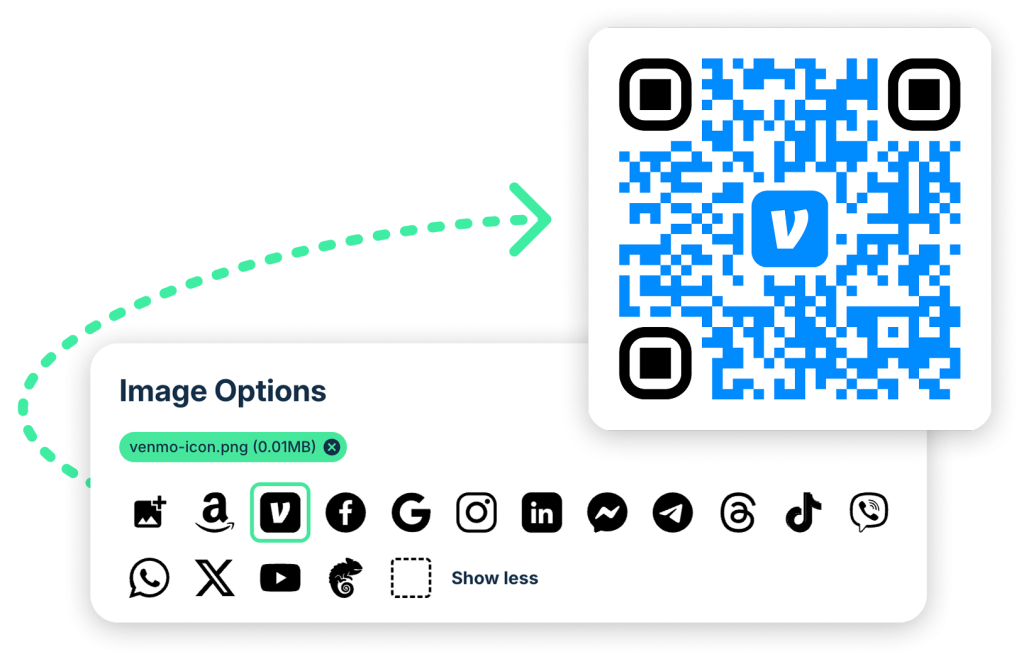
Add a logo to the center — Your brand logo, or a platform icon like YouTube for a video link or Instagram for a profile link. The built-in social media icons in QR Chameleon (YouTube, TikTok, Instagram, etc.) are free and make it instantly clear what platform the code leads to. Keep logos at no more than 30% of the code’s width so the error correction can still decode it.
Change the colors — Match your brand, but keep strong contrast. Dark code on a light background always works. Reversed codes (light on dark) work too but are pickier about lighting and older phones. Avoid low-contrast combinations like dark blue on purple.
Style the dots and corners — Rounded dots, custom corner shapes, and gradients all work at larger sizes. For small codes (under one inch), stick with standard squares — stylized dots can crunch into unreadability when shrunk.
Pick the right shape — Most codes are square. Some generators let you use a circle shape for aesthetic reasons. Square scans more reliably; use other shapes only when you have room to size up.
Step 5: Download the Right Format
For digital use (email, social media, slide decks, internal docs) — download as PNG or JPEG. These formats display cleanly on screens.
For print (flyers, business cards, posters, packaging, signage) — download as SVG. SVG is a vector format, so it scales to any size without getting blurry. A 1-inch business card code and a 6-foot billboard code can both come from the same SVG file.
Step 6: Test Before You Print or Share
Before you commit — especially before printing hundreds of copies — test the code on multiple phones. Different phones (old iPhones, new Androids, various camera apps) handle QR codes slightly differently. A code that scans perfectly on your phone might fail on a customer’s older device.
Test in realistic lighting. Also scan from the distance at which people will actually be reading. Test with the actual printed version, not just the digital file — ink bleed and low-contrast paper can break a code that looks perfect on screen.
The Types of QR Codes You Can Create
A QR code can point to almost any type of digital content. The generation process is the same; only the URL you use changes.
Links and Web Pages
The most common use case. Copy the URL, paste, generate. Works for any publicly accessible web page — your homepage, a product page, a blog post, a landing page, a form.
Videos (YouTube, Vimeo, TikTok)
Copy the share URL from the video (on YouTube: click Share, copy the link), paste it into the generator. The full walkthrough — including how to add a YouTube icon to the center of your code so people know what to expect — is in the QR code for video guide.
Business Cards (vCard)
For a QR code that saves your contact info directly to someone’s phone, you create a vCard QR code — which encodes your name, phone, email, and more into the QR pattern itself. Full guide: how to create a QR code for your business card.
WiFi Networks
You can create a QR code that connects a phone to your WiFi network without typing the password. Useful for cafés, hotels, offices, and home guest networks. Guide: WiFi QR code guide.
PDFs and Documents
Upload the PDF to a hosting service (Google Drive, Dropbox, your own server), make it publicly shareable, and generate a QR code from that URL. Detailed walkthrough: QR code for PDF guide.
Payments (Venmo, PayPal, Cash App)
Most payment apps have built-in QR codes, but creating a custom one gives you print quality, branding, and scan tracking that the app-generated codes don’t. See the Venmo QR code guide for the process.
Landing Pages with Multiple Links
If you want your QR code to open a page with multiple links — like your Instagram, TikTok, Shop, and newsletter all on one page — make the link-in-bio page first, then create a QR code that points to it. Compare tools: best link in bio tools.
Google Forms, Google Docs, Surveys
Get the share URL of the form or document, paste into the generator, done. Works the same as any other link.
Static vs Dynamic: The Single Most Important Decision
Before you create the code, you’re implicitly picking between two types:
Static QR codes encode the destination URL directly into the pattern. The URL you put in becomes part of the image forever. Free, permanent, untrackable. If the destination URL breaks or changes, the QR code is dead.
Dynamic QR codes encode a short tracking URL (like `qrch.am/abc`) that redirects to the real destination. You can change the destination anytime from a dashboard without regenerating the code. You also get full scan analytics — how many scans, from where, on what devices, at what times.
For a full breakdown, see static vs dynamic QR codes. Short version: use dynamic unless you have a very specific reason not to. The future-proofing and tracking benefits are worth the small effort of using a tool that supports them.
How Big Should Your QR Code Be?
One of the most common reasons QR codes fail is size. The rule of thumb: a QR code should be at least 1/10 the distance from which it will be scanned. A business card scanned from 6 inches away needs a code roughly 0.6 inches — 1 inch is the practical minimum. A trade show sign scanned from 6 feet away needs a code at least 7.2 inches square.
Full size chart by use case: QR code minimum size guide. The short version:
- Business cards: 1 inch square minimum
- Flyers, handouts: 1.5 inches
- Packaging: 1-1.2 inches
- Indoor posters: 3-5 inches
- Trade show signs: 6-8 inches
- Yard signs, storefronts: 12-24 inches
- Billboards: 36+ inches
Customization Tips That Matter
Beyond the basic “add a logo, change the colors,” a few customization moves meaningfully improve scan rates:
Keep a quiet zone. QR codes need white space around them (a margin of at least 4 modules — the small squares inside the code). If you butt text or graphics up against the edge, scanners misread the boundary and fail to decode. Always leave breathing room.
Match the logo to the destination. A YouTube icon in the center of a QR code that links to a YouTube video is instant recognition. Your own brand logo works for your own properties. A random icon that has no connection to the destination is just noise.
Test contrast with your eyes closed. Squint at the printed QR code or look at a grayscale version. If the dark parts still look clearly darker than the light parts, it’ll scan. If it’s borderline, change the colors.
Don’t stretch the code. QR codes must remain square. Browsers, design tools, and sloppy users sometimes resize codes proportionally wrong. Always verify the final output is square, not rectangular.
Common Mistakes That Kill QR Codes
A few specific ways people end up with QR codes that don’t work:
Using a long URL inside a static code. The more data a QR code encodes, the denser the pattern becomes. A direct link with heavy UTM parameters creates a hard-to-scan code that needs to be printed larger. Use a short link or a dynamic QR code to keep the pattern clean.
Printing without testing. Always scan the proof. Printing errors, paper texture, and low-contrast inks can break a code that looks perfect on screen.
Making the code too small for the scan distance. The 10:1 rule isn’t optional. Undersized codes are the single most common reason QR codes fail in the wild.
No call-to-action next to the code. A QR code with no context is easier to ignore. A QR code with “Scan to view the menu” next to it gets scanned far more often. Tell people what will happen when they scan.
Trusting the wrong tool. Some free generators add their own branding to the code, expire the link after a trial period, or route scans through their servers in ways you don’t control. Read the terms before you print 500 copies of something.
Not tracking what you can’t measure. If you went to the trouble of creating a QR code, you should know whether it’s working. Dynamic codes give you scan analytics — use them to figure out which placements drove the most scans and which didn’t.
Printing and Display Best Practices
Once you have a code, how it’s displayed affects whether it gets scanned:
Print on matte stock when possible. Glossy finishes reflect light and can wash out the contrast a scanner needs. Matte or semi-gloss is safer for outdoor and bright-light environments.
Use SVG for anything larger than 2 inches. PNG works for small prints but gets blurry when scaled up. SVG is vector — scales to any size without quality loss.
Don’t print on textured or patterned surfaces. Fabric, wood grain, and brushed metal distort the pattern. If you’re printing on a non-standard surface, always test a small version first.
Watch the lighting. Outdoor codes in direct sunlight, dim restaurant lighting, and the harsh bulbs of a trade show booth all affect scanning. If you know where the code will be, test there before committing.
Testing Your QR Code Before You Launch
The five-test checklist before going live:
- iPhone camera app. Scan with the built-in camera, not a third-party scanner app. Same for customers.
- Android camera app. Different phones focus differently. Test at least one of each.
- Distance. Scan from the realistic distance users will actually use — arm’s length for a business card, across a room for a poster.
- Lighting. Bright room, dim room, outdoor sun. Wherever the code will live.
- A printed proof. The digital file is not the same as the printed version. Ink bleed, paper color, and printer resolution all affect the final scan.
If all five pass, you’re safe to print or share at scale. If any fail, fix before committing.
Free vs Paid QR Code Tools
Free generators work for simple, one-off codes that don’t need to be tracked or updated. If you’re making a QR code for a personal link and you’ll never need to change it, a free static generator does the job.
Paid tools (or the paid tiers of freemium tools) add:
- Dynamic codes (editable destinations)
- Scan analytics
- Custom branding and design
- Custom domains (`go.yourbrand.com/xyz` instead of `qrch.am/xyz`)
- Bulk generation for campaigns
- API access for automation
For most business use cases, the paid tier pays for itself the first time you need to change a destination without reprinting, or the first time you pull up analytics to see which campaign actually drove scans. QR Chameleon’s pricing starts at $4/month for the Blend tier (full analytics, branding removal, custom colors, logo upload).
Frequently Asked Questions
How do I make a QR code for a link?
Copy the URL, paste it into a QR code generator, click Create, and download the code as PNG (for digital) or SVG (for print). That’s the basic process. For a code you can update later or track, use a dynamic QR code generator that supports editable destinations and scan analytics.
How do I create a QR code for free?
Most QR code generators have a free tier. For static QR codes, many free tools let you create unlimited codes with no account. For dynamic codes (editable, trackable), free plans typically include a small number of codes per month. QR Chameleon’s free plan includes 2 dynamic QR codes per month with full analytics.
What is the best way to make a QR code?
The best approach depends on what you need. For a quick one-off link, a free static generator is fine. For any code that might need updating, tracking, or custom branding, use a dynamic QR code generator. The process takes only a minute longer and gives you far more control.
Can I make a QR code for any URL?
Yes. A QR code can encode any URL — websites, YouTube videos, PDFs hosted online, Google Forms, social media profiles, e-commerce product pages, anything with a link. The QR code itself doesn’t care what kind of content is at the other end.
How do I make a QR code that I can edit later?
Use a dynamic QR code. Static QR codes encode the URL directly into the pattern, so they can’t be changed after creation. Dynamic codes encode a short tracking URL that redirects to your destination — you can change that destination from a dashboard without regenerating the code.
Do QR codes expire?
Static QR codes don’t expire in themselves, but they break if the destination URL stops working. Dynamic QR codes can be set to expire after a specific date or number of scans if that’s useful for time-limited campaigns, but otherwise stay active as long as the account is maintained.
What size should my QR code be?
At minimum, 1 inch square for arm’s-length scanning. For scanning from further away, use the 10:1 rule — code size should be at least 1/10 the scanning distance. A sign scanned from 6 feet away needs a code at least 7.2 inches across. Full chart: the QR code minimum size guide.
Can I make a QR code for a link for free on my iPhone?
Yes. You can use any web-based QR generator on your iPhone’s browser, paste your URL, and save the resulting QR code image to your Photos. iOS 17 and later also has a built-in QR code generator in the Shortcuts app. For more features (customization, tracking), use a generator site like QR Chameleon.
How do I make a QR code for a Google Form or Google Doc?
Get the share URL from the Google Form (click Send, then the link icon) or Google Doc (click Share, copy link). Paste that URL into any QR code generator. Make sure sharing permissions are set correctly on the form or doc so scanners can access it.