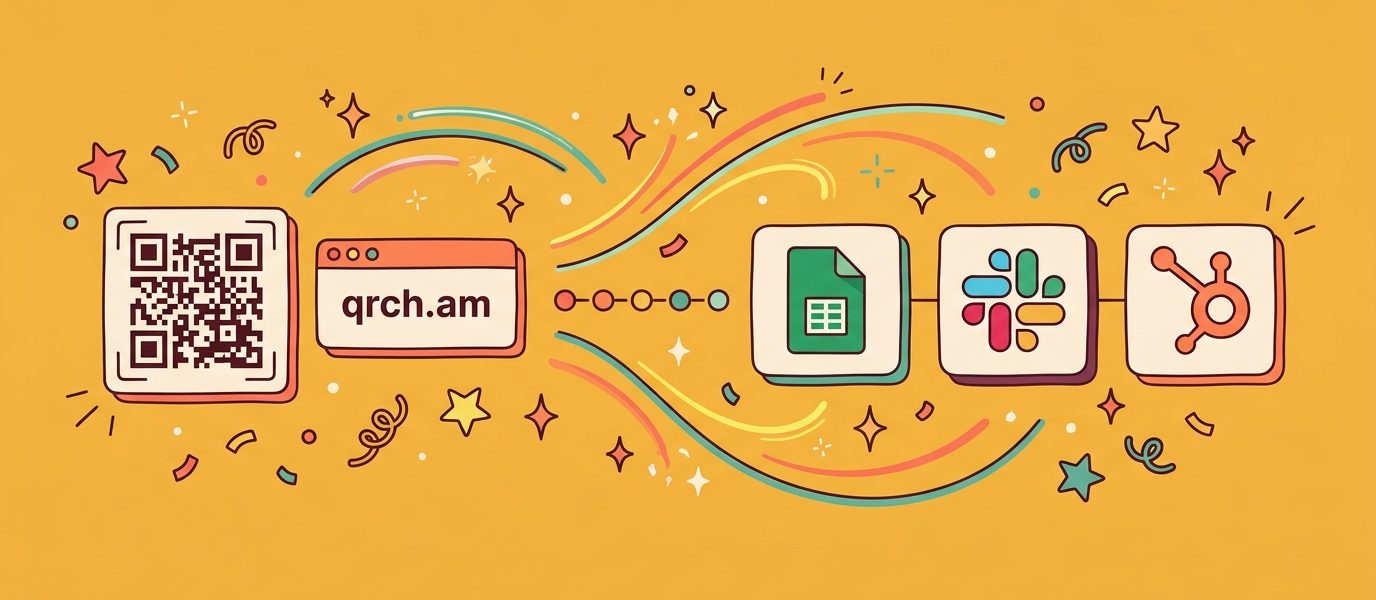
Every short link you share and every QR code you print is quietly collecting signal. A click means someone opened your link. A scan means someone pointed a phone at your flyer, your packaging, or a badge at an event — and each one tells you where it happened and on what device. The catch is that this signal usually lands in a dashboard nobody has open. The fix is to route it, automatically, to the places your team already works: a spreadsheet, a Slack channel, your CRM.
That is exactly what the QR Chameleon Zapier integration is for. QR Chameleon is a link shortener and a QR code platform, so clicks and scans are both events a Zap can act on — and Zapier connects to more than 6,000 apps. No code, no developer, no invite code.
This guide gives you four automations, each a few minutes to set up. They run from the simplest (log every event to a sheet) to the most valuable (feed engagement into your CRM), and the last one works in reverse — creating branded short links and QR codes from the tools you already use.
Before you start
You will need three things:
- A QR Chameleon account. The REST API that Zapier connects to is included on every plan, free tier included. Because Zapier checks for new events on a schedule, a busy always-on Zap makes a lot of requests over a month — if you plan to run these continuously, the Blend plan or higher gives you the request headroom.
- Your API key. In your dashboard, open the API section and copy your key (it starts with
qrc_). - A Zapier account. Any plan that lets you build the Zaps below.
One thing to know up front: the headline trigger is New Scan or Click, and it works for both — a QR code scan and a short-link click are the same kind of event, and you choose scans, clicks, or both when you build the Zap. These are polling triggers: Zapier checks every few minutes on its normal schedule — close to real time, not instant. Each event carries a stable ID, so the same one never fires your Zap twice.
Ready? Open QR Chameleon on the Zapier App Directory and click Create Zap to follow along.
Workflow 1: Log every scan and click to Google Sheets
What you’ll build: a running spreadsheet that gains a row every time any of your codes is scanned or any of your links is clicked. It is the simplest way to get a shareable, always-current report without handing anyone a dashboard login.
You’ll need: QR Chameleon, Google Sheets.
- Create a new Zap. For the trigger, choose QR Chameleon and the New Scan or Click event.
- Connect your account by pasting your
qrc_API key. Zapier labels the connection with your account email. - In the trigger options, set the event type to All so you capture both scans and clicks (you can also pick just one).
- Click Test — Zapier pulls a recent event so you can see the fields: short code, destination, event type (scan or click), city, region, country, device, and timestamp.
- For the action, choose Google Sheets → Create Spreadsheet Row. Pick your sheet, then map each column to a field from step 4.
- Test the action, confirm the row looks right, and turn the Zap on.
Why it’s worth it: the full analytics are already in QR Chameleon on every plan, but a sheet is easy to hand to a client or a colleague who will never log in — and because the event type is right there in the row, you can filter scans from clicks with a column, not a spreadsheet formula.
Workflow 2: Get a Slack alert the moment a code is scanned or a link is clicked
What you’ll build: a message to a Slack channel whenever a specific code or link gets activity — a QR code on a conference booth, a link in a product launch email, a limited drop you want to watch live.
You’ll need: QR Chameleon, Slack.
- Start a new Zap with the QR Chameleon → New Scan or Click trigger, connected with your API key.
- Choose the event type you care about. For a printed QR code at an event, set it to Scan; for a link in an email blast, set it to Click; leave it on All to catch both.
- Add a Slack → Send Channel Message action and connect your workspace.
- Write the message and drop in fields from the trigger — for example:
New {{event_type}} in {{city}}, {{country}} on {{device}} → {{destination}}. - Test, then turn it on. Your channel now narrates real-world engagement as it happens.
Why it’s worth it: scans and clicks are moments of intent. Surfacing them in Slack turns a passive report into something your team can act on while it still matters — walk over to the booth, reply to the lead, restock the drop.
Workflow 3: Turn scans and clicks into CRM activity
What you’ll build: a new activity or lead in your CRM each time someone engages — a scan off printed packaging, a click from a sales email — so sales and marketing see real-world signal next to the record. This is the kind of first-party data most QR tools reserve for their priciest tier.
You’ll need: QR Chameleon, your CRM (HubSpot used here; Salesforce, Pipedrive, and others work the same way).
- Trigger: QR Chameleon → New Scan or Click, event type All.
- Action: HubSpot → Create Engagement (or Create/Update Contact, depending on how you track activity).
- Map the event details — destination, event type, location, device, timestamp — into the engagement notes or custom properties.
- Optional: add a Filter step so only a particular campaign code or link creates CRM activity, keeping the noise down.
- Test and turn it on.
Why it’s worth it: this closes the loop between a physical touchpoint or an email click and your pipeline. QR Chameleon records every scan and click on every plan with no analytics cap, so the signal feeding your CRM is complete — not throttled the moment you pass a tier limit.
Workflow 4: Auto-create a branded short link (and QR code) from your other tools
What you’ll build: the reverse direction. Instead of reacting to engagement, a Zap creates a QR Chameleon short link or QR code whenever something new appears in another app — a new blog post, a product row, a form submission.
You’ll need: the source app (a new WordPress post, Airtable row, or Google Sheet row), QR Chameleon.
- Trigger: whatever you want to react to — for example WordPress → New Post or Google Sheets → New Spreadsheet Row.
- Action: QR Chameleon → Create Short Link. Map the source URL into the destination, then set a title, a custom back-half (so the link reads qrch.am/spring-launch instead of random characters), and UTM parameters so the click shows up in your campaign reports. Point it at your own branded domain if you have one connected.
- Want a code too? Add a second action, QR Chameleon → Create QR Code, aimed at the same destination. Because QR Chameleon codes are dynamic, you can re-point it later without reprinting a thing.
- Map the returned short link or code back into your source tool — post it to Slack, write it to the spreadsheet, drop it into the CMS field — so it is ready to use.
- Test and turn it on.
Why it’s worth it: every link you publish becomes a tracked, branded short link automatically, with a matching QR code when you need one — no copy-paste, no forgetting the UTMs, no stray unbranded URLs going out the door.
A few tips
- Filter to cut noise. A Zapier Filter step lets a Zap act only on a specific code, link, campaign, or event type, so you are not pinging Slack for every click.
- Split scans from clicks when it matters. Run two Zaps off the same trigger — one filtered to Scan, one to Click — when a print campaign and an email campaign deserve different follow-ups.
- Mind the cadence. Polling runs on Zapier’s schedule (every few minutes). For reporting, alerting, and CRM updates that is plenty; it is not built for sub-second reactions.
- Watch your request volume. Several always-on Zaps polling together add up. If you are running these full time, the Blend plan or higher keeps you comfortably within the monthly request allowance.
- Dynamic codes age well. Anything you create with the Create QR Code action can be re-pointed later, so a code a Zap printed last quarter still works when the destination changes.
Put your links and codes to work
Four automations, each a few minutes to build, all powered by data QR Chameleon already collects on every plan. The through-line: your short links and QR codes are not just redirects — they are a live feed of engagement you can route anywhere, and a pair of actions that can mint new branded links and codes on demand.
Ready to wire it up? Create a free QR Chameleon account, grab your API key, and head to the QR Chameleon Zapier integration to see every trigger and action. Then connect it on the Zapier App Directory and build your first Zap.
Frequently Asked Questions
Does this work with short links, or only QR codes?
Both. QR Chameleon is a link shortener and a QR code platform, so a click on a short link and a scan of a QR code are the same kind of event. The New Scan or Click trigger starts a Zap from either, and you can choose scans, clicks, or both. Every workflow in this guide works with short links, QR codes, or a mix.
Do I need to write any code?
No. You connect QR Chameleon to Zapier by pasting an API key, then build each Zap by picking a trigger and an action from menus. There is nothing to deploy and no developer required.
How quickly does a scan or click reach my other apps?
These are polling triggers, so Zapier checks for new events every few minutes on its schedule and then runs your Zap. It is close to real time, which is plenty for reporting, alerts, and CRM updates — just not sub-second.
Which QR Chameleon plan do I need?
The REST API that Zapier uses is included on every plan, including the free tier, so you can start for free. Because an always-on Zap polls regularly, teams running several continuous automations are more comfortable on the Blend plan or higher, where the monthly request allowance has room to spare.
Can Zapier create short links and QR codes for me, not just report on them?
Yes. Alongside the triggers, there are actions to create a short link — with a custom back-half and UTM parameters — and to create a dynamic QR code. Another app can generate a branded, trackable link or code automatically, with no copy-paste.